 Sentinel MCX
1How station alerting works
When dispatch pages a unit, Sentinel MCX turns on the station that unit runs from. The page can come from a dispatcher in Sentinel MCX Dispatch, from your CAD system, or from tones on the radio. Each station is split into zones, such as the bay, the day room, the offices and each dorm. Every zone has its own speakers, lights, strobes, signs and door controls, and is alerted only for the units it serves.
Station alerting is extra to the page itself. Your own Sentinel MCX Mobile phone or radio still gets every page as usual, whether or not the station's equipment answers.
2When a call comes in
Each zone the page reaches goes through the steps your administrator set for it, in order. A step can wait a few seconds after the page, so the zone wakes up gradually instead of all at once.
| What | What you notice |
|---|---|
| Lights and doors | Bay lights, dorm lights, bay doors or a turnout timer switch on through the station's relay controls. |
| Alert tones | The station's speakers play the alert three times, getting louder each time, so nobody is startled awake by full volume. |
| Dispatcher's voice | After the tones, the speakers carry the paged channel live, so you hear the dispatch as it is given. This is listen only and ends after a set time (60 seconds unless your station chose another). |
| Strobes | Strobe lights flash in the pattern and color set for the zone, until a set time or a later step stops them. |
| Signs and displays | Message signs and displays show the call type and address when CAD sent them, or which units were paged. |
Which of these your station has depends on its equipment. If one part fails, for example a sign that does not answer, the other steps still run.
You do not acknowledge anything at the station. Acknowledge the page on your own Sentinel MCX Mobile device, as you normally do.
3The room board
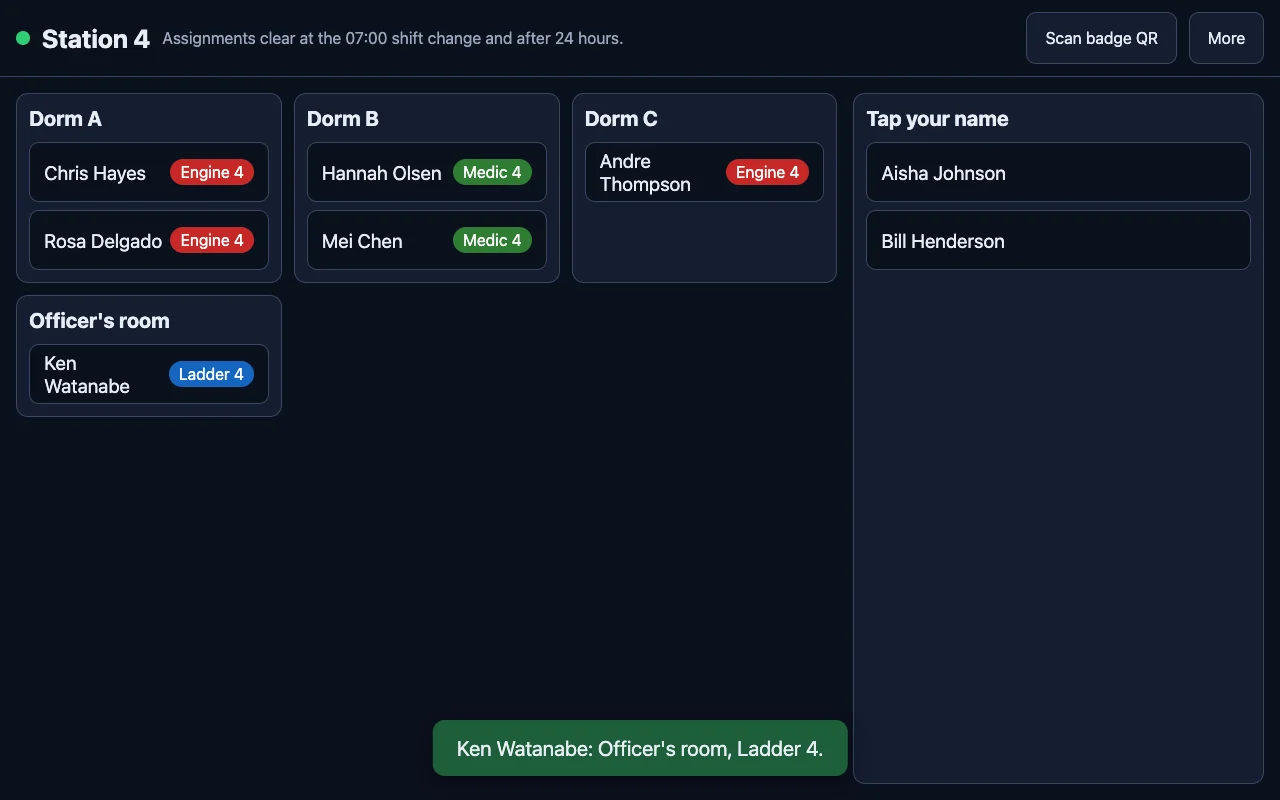
Without a room board, a page wakes every zone its units are set up for, so the whole station gets up for one unit's call. The room board fixes that at night. It is a tablet on the wall, usually in the hallway, where each responder marks the room they sleep in and the unit they ride. A page then alerts only:
- the zones your station keeps always alerted, such as the bay and common areas, and
- the rooms where someone on a paged unit is placed.
The board shows the station's name at the top, then each room with the people in it and their unit's call sign in the unit's color. Rooms with nobody in them say Nobody. Beside the rooms, Tap your name lists the crew who are not placed yet.
The line under the station's name says when assignments clear, for example Assignments clear at the 07:00 shift change and after 24 hours. After that, you need to place yourself again. If the line says Not connected, the tablet keeps trying, and your change is sent when it reconnects.
4Putting yourself on the board
- Tap your name under Tap your name. With more than 12 names there is a search box: type part of your name.
- Pick the room you are in.
- Pick the unit you ride. Your own unit is highlighted first.
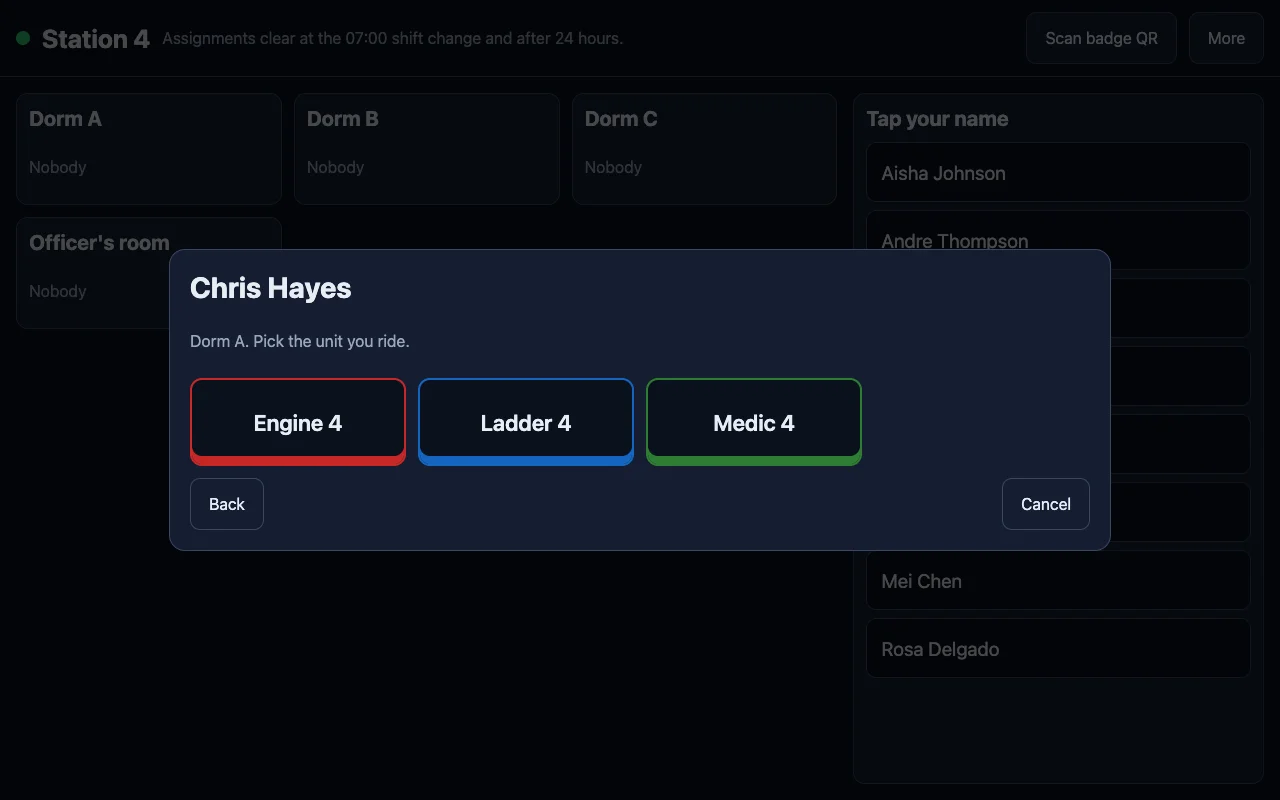
The tablet confirms it, for example Kim Ross: Dorm A, Engine 4. You can be on one station's board at a time; placing yourself again replaces your earlier choice.
- To move, tap your name in its room and pick another room and unit.
- To leave, for example at the end of your shift, tap your name and choose Leave the board.
- Back returns to the room choice and Cancel closes without a change. A half finished choice clears by itself after 45 seconds.
5Using your badge
Where your agency uses ID badges, you can use yours instead of finding your name, then pick your room and unit as usual:
- A badge tag: on a tablet with a badge reader, tap Turn on badge reader once, then hold your badge to the back of the tablet.
- A QR code on the badge: tap Scan badge QR and hold the code to the tablet's front camera.
The buttons show only on tablets and browsers that can read badges. If your badge is not known, tap your name instead.
6When the whole station is alerted
The board can only keep rooms quiet. It never stops a page, a channel or an emergency, and every responder's own device still alerts. Whenever there is any doubt, every zone is alerted:
- the board is turned off (the tablet then says so);
- a paged unit that is on the board has nobody placed on it at this station;
- the page names no unit the board offers;
- someone is placed in a room the page does not reach;
- the assignments have cleared, after the shift change or the set number of hours;
- the board cannot be read when the page arrives.
For example, if a call goes to Engine 4 and Medic 4 and only Engine 4's crew is on the board, the whole station is woken.
Some equipment covers more than one room, such as a speaker system that plays in every room. Your station may keep that in an always alerted zone, so you can still hear the dispatch in a quiet room.
7When the internet is down
Where your station has its own Sentinel MCX server on site, station alerting and the room board keep working when the internet connection is lost. The tablet moves to the station's server by itself and back again afterwards. Changes made during the outage are kept and sent on when the connection returns, so a night's places are not lost.
Without a server on site, the station's equipment needs the internet connection to be alerted. Your own device still gets the page over the cellular network.
8Setting up the board tablet
The board runs in the browser of a tablet mounted in the station. It needs no password: it signs in once with a one-time board code.
- Get a board code. Your administrator makes one in the web admin, on the station's Station alerting page, and sends the link. Each code works once, for one tablet, within 72 hours.
- Open the link on the tablet. It fills in the code. Or open the board page and type the code under I have a code.
- Choose Set up this tablet. The board for your station appears.
- Install it as an app (optional) from the browser's menu, so it opens full screen.
The tablet keeps its screen on while the board is open, and works upright or sideways. More at the top has Full screen, Copy diagnostics and Sign out. After signing out, the tablet needs a new board code.
9What your administrator sets
The station's setup is kept in the web admin, on the Station alerting page. Ask your officer or administrator to change it:
- the station's zones, which units' tones alert each one, and what each zone does, with its delays;
- which zones are always alerted, such as the bay;
- the rooms on the board and the zone each room belongs to;
- whether the room board is on, when assignments clear (after 24 hours unless set, and at an optional daily shift change), and which units the board offers.
10Troubleshooting
| What you see | What to do |
|---|---|
| The whole station was woken for one unit | Check the crew of every paged unit was on the board, and that assignments had not cleared at the shift change. See When the whole station is alerted. |
| "This board is turned off in the web admin" | Pages alert every room. Ask your administrator to turn the room board on. |
| "This board offers no units" | Your administrator needs to pick the units in the web admin. |
| Your name is not on the board | The board lists the crew of the units it offers. Ask your administrator to add you to your unit. |
| "That badge is not known here" | Tap your name instead, and ask your administrator to add the badge to your user. |
| "Not connected" | Check the tablet's Wi-Fi or network cable. Changes wait until it reconnects. |
| Speakers, lights or signs did not come on | Your own device still had the page. Tell your officer, who can contact your dealer. |
For help, contact your dealer. On the tablet, More, then Copy diagnostics copies the tablet's log to paste into an email to your dealer.