 Sentinel MCX
1Installing and signing in
Install Sentinel MCX Mobile from the App Store. The icon is labelled MCX Mobile. The same app runs on iPad, where the channel list sits beside the Talk screen. Then:
- Open MCX Mobile. The first screen is Sign in this device.
- Enter the server address (for example ptt.organization.com) and the enrollment code from your administrator. You can also paste the enrollment link into either box.
- Tap Sign in this device. The code works once.
- Allow what the app asks for: the microphone to talk, notifications for pages, calls and emergencies, and location so dispatch can find you. Allow location Always if your agency uses lone worker, man down or mine zones, so they keep working with the screen off. Bluetooth is asked for where your agency uses indoor beacons.
On an iPhone your organization manages, the server and code can come from the device manager, and the app signs in by itself. The app remembers the server, so signing in again only needs a new code.
Profiles and signing out
- A shared iPhone can keep more than one sign-in. Under Settings, User profiles lets you add, switch, rename and remove them. Switching signs out the profile in use and signs in the one you pick.
- Where your agency allows it, Shift sign-in in the menu signs you in for a shift with your shift number and PIN. Sign out of the shift when you hand the phone back.
- Sign out is the last item in the menu. The iPhone forgets its enrollment, and signing in again needs a new code.
2The screens
The tabs along the bottom are Talk, Channels, Messages and, when your agency shares positions, Map. If you set up My shortcuts, a Home tab comes first with your own tiles: channels to talk on, people to call, your statuses and screens, in your order.
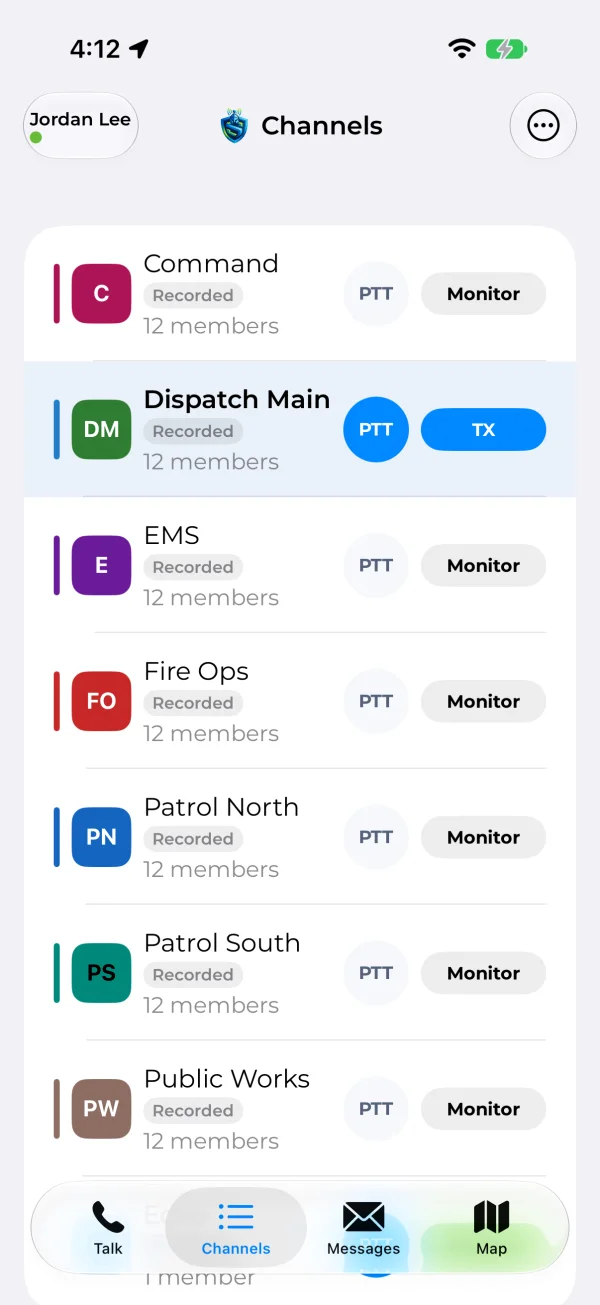
- The top bar shows your name, photo or unit type, your unit's call sign, and a dot for the connection.
- Strips above every tab show your own emergency, a lone worker session, Do not disturb, a mine emergency and anything else that needs your attention.
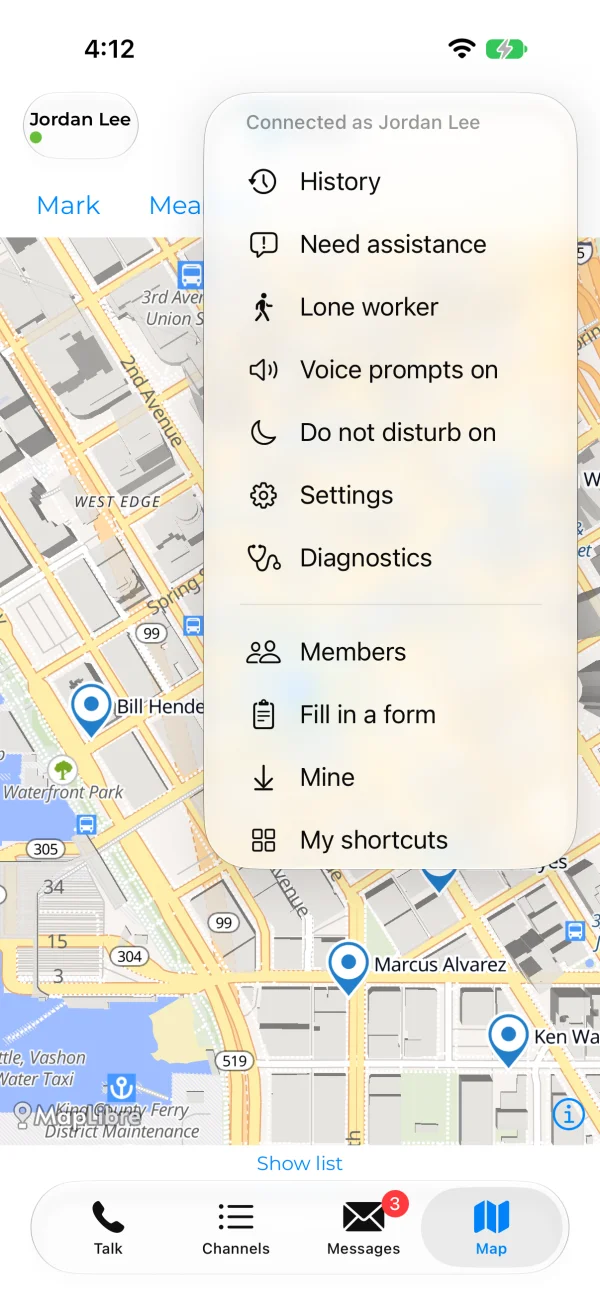
- The menu (the round button with three dots) holds Scan, History, Incidents, Status, Need assistance, Lone worker, Voice prompts, Do not disturb, Settings and Diagnostics, then Members, Campus alerts, Tasks, forms, Share video, Guard tours, Mine and My shortcuts. Items your agency does not use do not show.
- Look in the menu switches between light, dark and the iPhone's own setting.
- Landscape: turned on its side, the tabs move to a rail on the left and the Talk screen uses two columns.
Your administrator can set a channel and a screen that the app opens on each time it starts.
3Talking
- Pick a channel on Talk: tap the channel name, or use the arrows beside it.
- Hold PTT and wait for the go-ahead tone.
- Speak, then let go.
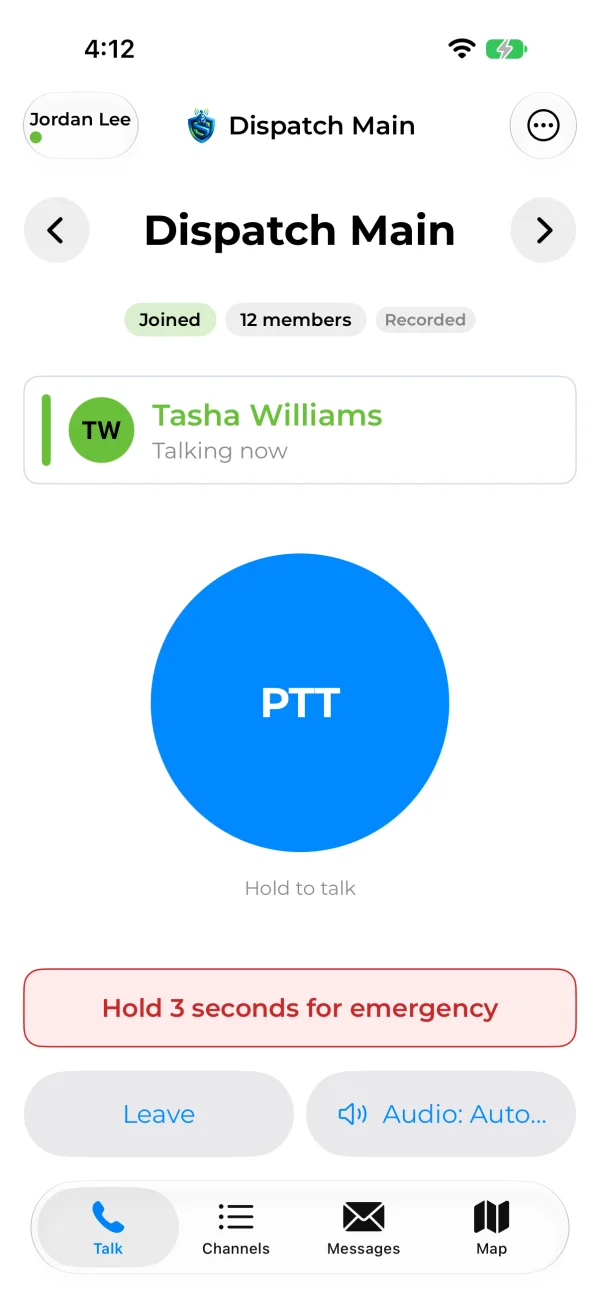
Under the button the app says what it will do: Hold to talk, Press to talk with Toggle PTT on, or Join to talk on a channel you have left. The card above the button shows who has the floor: you, someone else (with their photo), or a talker on another channel while yours is quiet. If someone else is talking, you hear a short tone and wait your turn. A transmission ends at the channel's time limit. When dispatch broadcasts, you listen, and your emergency key still goes through.
The row under the channel shows Joined or Not joined, the member count (tap it for the members), and pills such as Priority, Scan, Mutual aid and Recorded. At the bottom are Leave or Join, Audio (speaker, earpiece or a Bluetooth headset), and Status.
Tones
| Tone | When | Setting |
|---|---|---|
| Go-ahead | When you may speak. | Go-ahead tone in Settings, Keys. |
| End tone | A short beep when the talker stops. | End tone in Settings, Keys. |
| Channel change | A short beep each time the arrows step to another channel, on the iPhone or the watch. | None. Voice prompts, when on, then say the channel's name. |
| Busy | You pressed while someone else had the floor, or talk was refused. | None. |
Keys and audio
Settings, Keys has Toggle PTT (press to start, press to stop), Five quick PTT presses raise panic, Headset button is PTT, vibration for messages and for when someone starts talking, and Voice plays on. Voice prompts in the menu speaks channel and connection changes.
4Talking from the lock screen
Sentinel MCX Mobile uses Apple's Push to Talk on the iPhone. Once you have signed in and opened the app, iOS shows your transmit channel in its Push to Talk controls, on the lock screen and from the status bar:
- iOS shows who is talking when a transmission comes in.
- Press the talk button in iOS's Push to Talk controls to talk on your transmit channel without unlocking the iPhone.
- You hear your channel while the app is open or in the background. Where your provider has turned on Apple push for the server, a transmission can also start the app again after iOS has closed it; otherwise, open the app again to hear your channel.
iOS joins the channel only while the app is on screen, so open the app once after signing in, and after changing channel if the lock screen still shows the old one.
5Siri, Shortcuts, widgets and controls
Siri and Shortcuts
These work without setup, from Siri, the Shortcuts app, Spotlight or the Action button, and without unlocking or opening the app:
| Say | What it does |
|---|---|
| "Talk on MCX Mobile" | Starts talking on your transmit channel (or a channel you name in Shortcuts). Run it again to stop. The channel's time limit ends one left running. |
| "Raise an emergency in MCX Mobile" | Asks you to confirm, then raises your emergency exactly as the on-screen key does. |
| "Set my MCX Mobile status" | Sets a status from your agency's list, or clears it. |
| "Send MCX Mobile diagnostics" | Sends this iPhone's diagnostic log to your dealer. |
Talking from Siri works while the app is running in the background. If iOS has closed the app, the first try says it is not connected yet: try again a moment later.
The Talk widget
Add the Talk widget to the Home Screen to see your transmit channel and a large Talk button that opens the app on Talk. It turns red during an emergency and grey while disconnected. On the lock screen it comes as a round PTT button, a line with the channel and status, or a single line above the clock.
The Talk control
The Talk control can go in Control Center, on the lock screen or on the Action button. It opens Sentinel MCX Mobile on Talk.
6Channels and scanning
- Channels lists your channels. A tap makes one your transmit channel and stays on the list. The PTT on a row talks on that channel, monitoring it first if needed. A long press shows its members.
- The arrows beside the channel name on Talk step through your channels in order, with the channel change tone. They show when you have two or more channels.
- Scan on in the menu lets you hear your other channels while yours is quiet, when your administrator gives you a scan list. Talk shows Hearing and the channel while a voice comes from another one.
- Patches: when dispatch patches channels, Talk names the patch and lists its channels.
- Mutual aid channels from another agency's incident show with the agency's name.
7Messages, calls and statuses
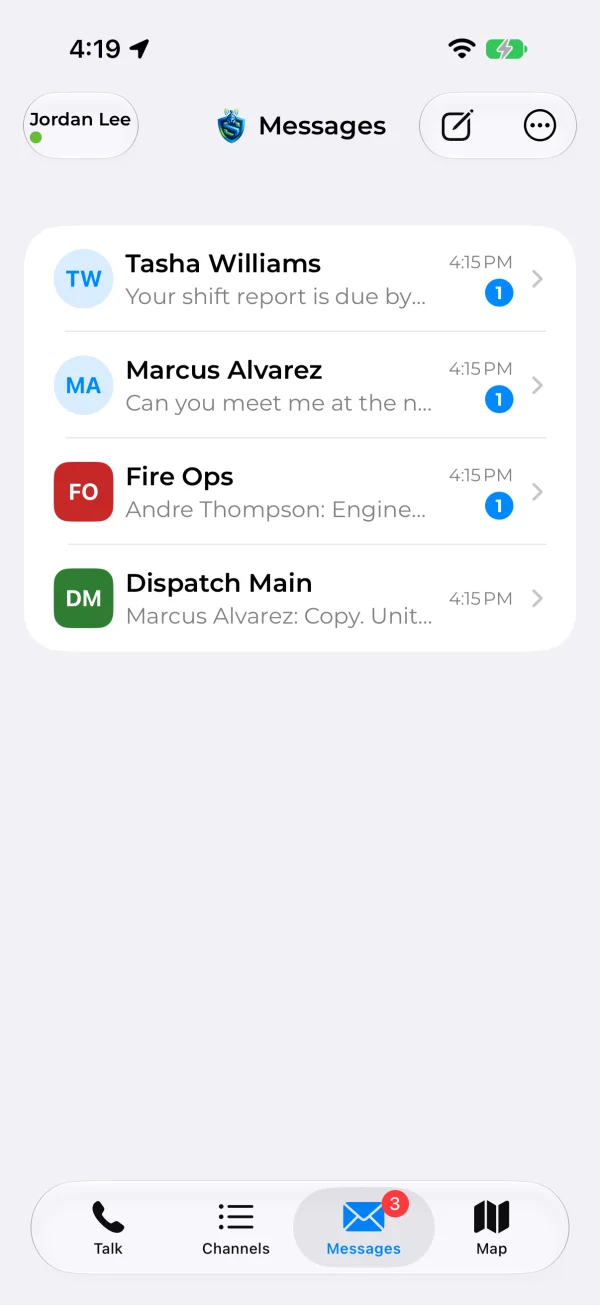
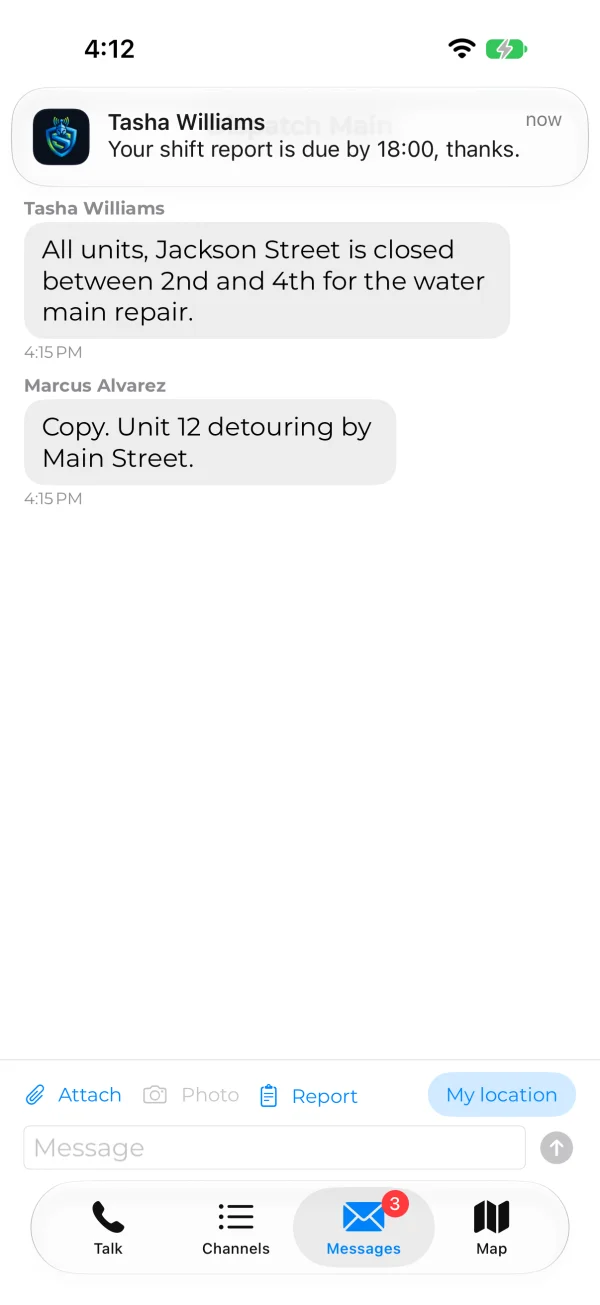
- Messages holds conversations with people and channels. New message picks any channel or person. Messages carry text, photos, files and voice messages, and show when they were sent, delivered and read.
- Calls: from a person, choose Push-to-talk call, Phone call (both talk at once) or, where your agency allows it, Video call. If the person has no device online, you can leave a voice message of up to 60 seconds. A Call alert in their conversation asks them to call you back, and shows how it went.
- Status sets a status from your agency's list. On the status sheet, Do not disturb holds private calls and call alerts (dispatch, channels and emergencies still reach you), and Answer calls at once connects a call without a tap.
- Share video sends your camera to dispatch, after you confirm. It is hidden where your agency keeps video off.
8Emergencies
Where your agency shows it, the Emergency key is on the Talk screen. Hold it for 3 seconds: a bar fills while you hold. Your dispatchers are alerted at once with your location, and your microphone opens on the emergency channel. If there is no connection, the emergency is queued and sent the moment the iPhone reconnects. The strip at the top says when dispatch has acknowledged it.
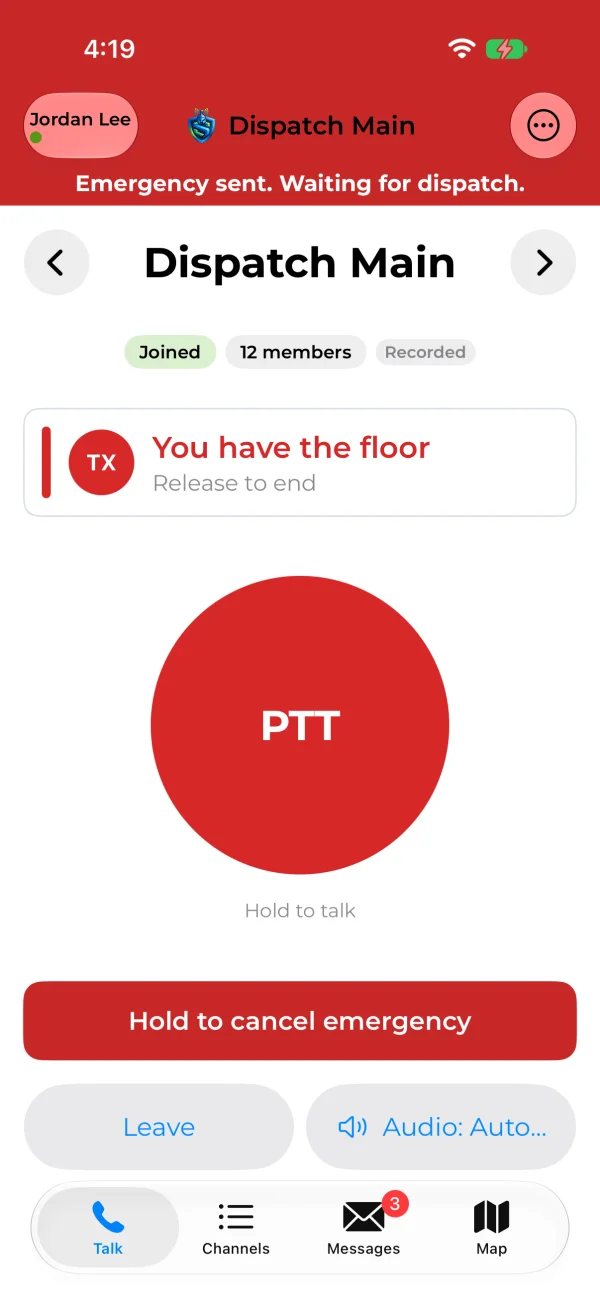
- To cancel your own emergency, hold the key again for 3 seconds.
- An emergency can also come from five quick PTT presses (if turned on), from Siri, from the Apple Watch, or from man down and crash detection.
- Other people's emergencies show view only, with their name and location. Where dispatch asks you to respond, choose Responding (the app shows where to go) or Unable.
- Need assistance in the menu, and Attention all units for dispatch roles, ask before they send.
- During your emergency, where your agency allows it and you agreed, dispatch may turn on the back camera while the app is on screen. A bar shows while it is on, and you can stop it there.
9Man down and crash detection
Man down alerts dispatch if you fall or stop moving. Turn it on in Settings, Alert dispatch if I fall or stop moving; your agency can also turn it on for you, or keep it on inside an area. When the iPhone detects a fall or no movement, it shows Man down detected and counts down. Tap I am OK to stop it; otherwise dispatch is alerted.
Crash detection works the same way after a hard impact at speed, where your agency turns it on for your iPhone: Crash detected, a countdown, and I am OK.
10Lone worker
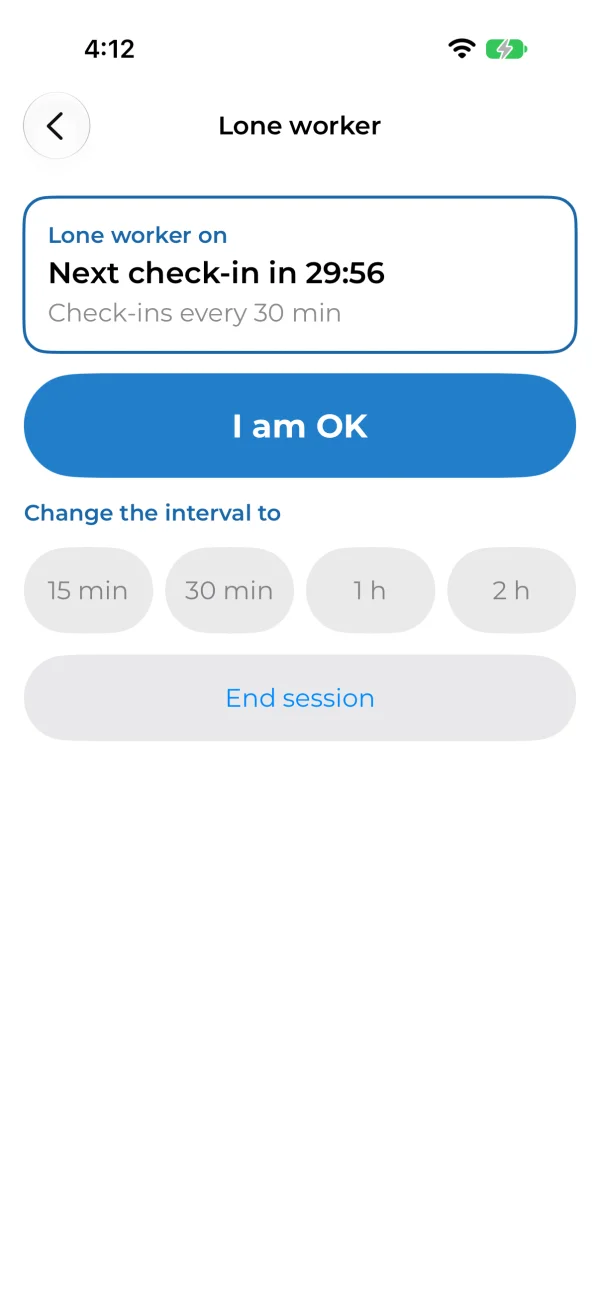
- Open Lone worker from the menu and choose how often to check in.
- Start lone worker. A strip shows the time to the next check-in on every tab.
- Check in with I am OK when asked. If you do not answer, dispatch is alerted with your location. I am OK on the Apple Watch also answers.
- End session when you are done, and confirm. Dispatch sees it ended. Where your agency has dispatch end sessions, the app waits for them and check-ins carry on until they do.
Without coverage, check-ins are kept on the iPhone and sent when coverage returns, and a missed one alarms on the iPhone itself.
11Pages, incidents, tasks and tours
- Pages from dispatch alert like a pager and join you to the channel, so you hear the dispatch. Acknowledge the page to stop the alert.
- Incidents in the menu lists the incidents you are on, with the address, notes and any premise hazards, and Directions to the scene.
- Tasks shows your work tasks and which are late. Fill in a form sends one of your agency's report forms.
- Guard tours runs a patrol round: check in at each checkpoint by scanning its code, by typing the code on it, at its place on the map, or by itself near a beacon checkpoint.
- Clock in and Clock out appear where your agency uses attendance.
12Campus alerts
Schools and campuses that use Sentinel MCX get Campus alerts in the menu, and a button for it on Talk for staff.
- Send campus alert raises one of your campus's alerts, and This is a drill marks a drill.
- I need help (hold 3 seconds) raises an emergency from where you are.
- An open alert shows Where to go and the Safety strategy, and a Call button for the agency's emergency number.
- Account for your group: tap a name once for missing, twice for injured, again for here, and add anyone with you who is not on the list.
13Mines: tag in and out
Where your agency runs a mine with portals, Mine is in the menu. It shows Mine: underground while you are tagged in.
- Open Mine at the portal. It shows your state, such as "Tagged in at Main portal, 06:02", and the zone the iPhone hears.
- Tap Tag in going underground, or Tag out coming up.
- Scan the code posted at the portal with the camera. The app says whether the tag counted, or why not.
Dispatch can also tag you in or out by hand, and the Mine screen shows it. Underground, the iPhone reports the zone it hears best from the mine's Bluetooth beacons; allow location Always so this goes on with the screen off.
Mine emergency
When dispatch opens a mine emergency, the iPhone plays a tone and a strip appears above every screen with the reason and how many people are unaccounted. It is not a panic, and talk goes on. Tap the strip for the emergency screen:
- I am in a refuge chamber: scan the chamber's code and you are counted there.
- Warden's count: for the chamber's warden. Pick the chamber, tick who is present and who is injured, add how many others are there (such as a visitor or a rescue team), add a note, and Send count.
14The map
Map shows where everyone is, when your agency shares positions, with unit icons and emergencies marked. You can:
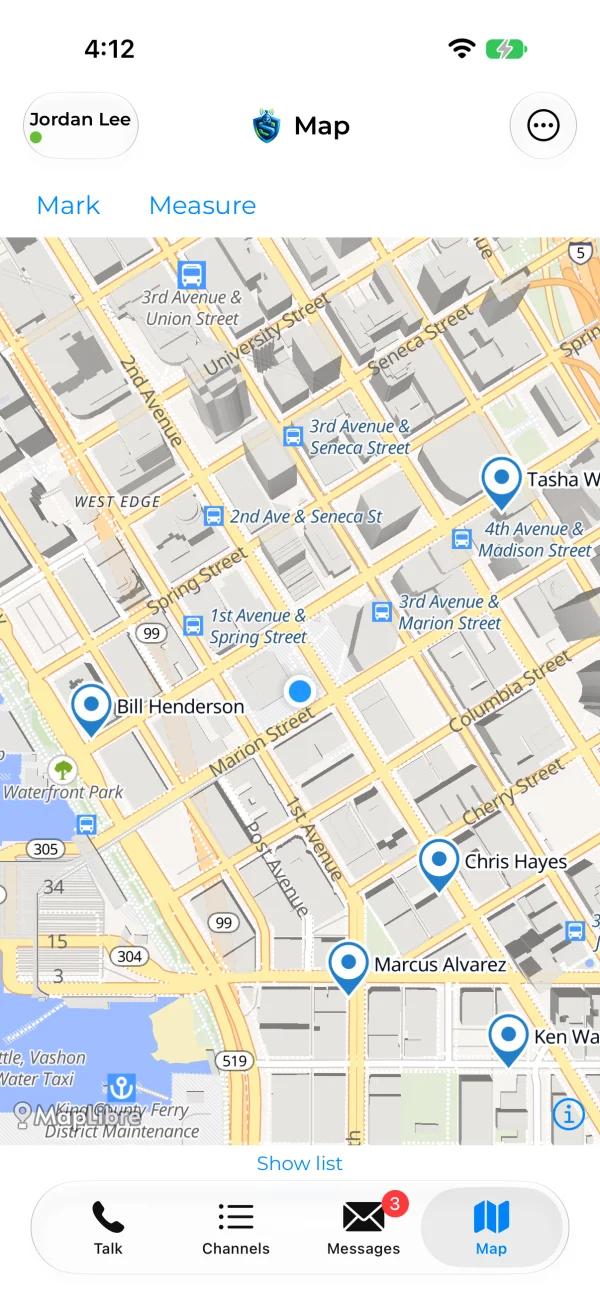
- tap a person for their distance and bearing, or follow them; a place dispatch sends you to opens Directions in Apple Maps;
- Mark the map: pick what it is, then tap where it goes; everyone on the channel sees it;
- turn layers on and off: hydrants, building plans, hazards, and on Wi-Fi radar, aircraft and vessels;
- use offline maps your agency provides, downloaded on Wi-Fi.
Hide my location from other users in Settings keeps your position from other users; dispatch still sees it, and it shows during your emergency.
15History and translation
History in the menu plays back recent transmissions on the channel, with emergencies marked and translations beside the original.
When your agency uses translation, you speak your own language and others hear or read you in theirs. Set Language in Settings. Speak translations reads transmissions in another language aloud in yours, and Transmissions as text also delivers each transmission as a message on channels set up for it.
A Privacy notice item appears in the menu where your agency has one.
16Apple Watch
The Sentinel MCX Mobile watch app comes with the iPhone app and works through your iPhone, which must be in reach. It shows your channel and whether talk is ready.
- Talk: hold the talk key on the watch and speak into the watch. After you talk from the watch, replies play on the watch for a few minutes. If the watch cannot use its microphone, it talks through the iPhone's.
- Channels: the arrows and the Digital Crown step through your channels, with the channel change tone.
- SOS: hold the SOS key for 3 seconds to raise an emergency.
- I am OK answers a lone worker check-in or a man down countdown.
- Pages show on the watch, with Acknowledge.
- Heart rate: the watch asks whether to share your heart rate with your agency. Dispatch then sees it, and it is used for man down and high heart rate alerts. Where your agency uses heat strain alerts, the watch tells you to rest, drink water and cool down.
- Complication: your channel on the watch face.
When the iPhone is out of reach the watch says so, and a press waits until it is back.
17Troubleshooting
| You see | What to do |
|---|---|
| The code is refused at sign-in | Ask your administrator for a new code. Each code works once. |
| Signed in on another device | Your account signed in somewhere else. Sign in again here with a new code if this is the iPhone you use. |
| Disabled by dispatch | Ask your dispatcher to enable you. |
| Join to talk | You have left this channel. Tap Join. |
| Nothing on the lock screen's Push to Talk controls | Open the app once while signed in; iOS joins the channel only then. |
| Siri says the app is not connected yet | iOS had closed the app. Try again a moment later, or open it. |
| An update is required | Your agency needs a newer version. Update from the App Store. |
| Something else is wrong | Diagnostics in the menu, then Send to support, which sends the report to your dealer. It waits for Wi-Fi unless you tap Use mobile data. When you contact your dealer, include the Session ID shown there. |