 Sentinel MCX
1Signing in and roles
- Choose Sign in with and your organization's name. The browser goes to your identity provider.
- Sign in there with your password and the code from your authenticator app. If the provider did not ask for the code, MCX Log sends you back once to give it.
- You are back in MCX Log, signed in. A session lasts at most 12 hours; after that the next action takes you to the sign-in card again.
| Role | What it adds |
|---|---|
| Viewer | Search, play and read transcripts. |
| Exporter | Also makes evidence packages. |
| Records manager | Also evidence packages, legal holds, retention rules and redacted copies. |
| QA evaluator | Search and play, and scores quality review cases. |
| QA manager | Also sets up quality review: forms, samples, reports and action plans. |
| Auditor | Reads the read audit and the holds and retention screen. |
| Administrator | The Status screen, evidence packages, holds, retention and redaction. |
The same person can hold different roles in different agencies. A search never crosses agencies. Every search, every playback and every package is recorded with your name.
2The screen
The bar at the top holds the screens your roles allow, in this order: Search, Recent, Emergencies, Evidence, Holds and retention, Quality assurance, Read audit and Status. On the right are the look (System look, Light or Dark), your name and Sign out.
- Each screen has its own address, so the browser's Back button and bookmarks work. A screen keeps what you did on it while you visit the others, until you reload the page.
- The player bar stays at the foot of the window once something has played. Only one thing is heard at a time.
- Status is for administrators: the feed from the server, the recordings held, the ledger, the clock, backups, retention and licence, with anything that wants attention at the top, and the channels that have gone quiet.
3Search and replay
Open Search, choose the Agency, fill in what you know and choose Search. Results come newest first, 50 at a time; Older recordings adds the next 50.
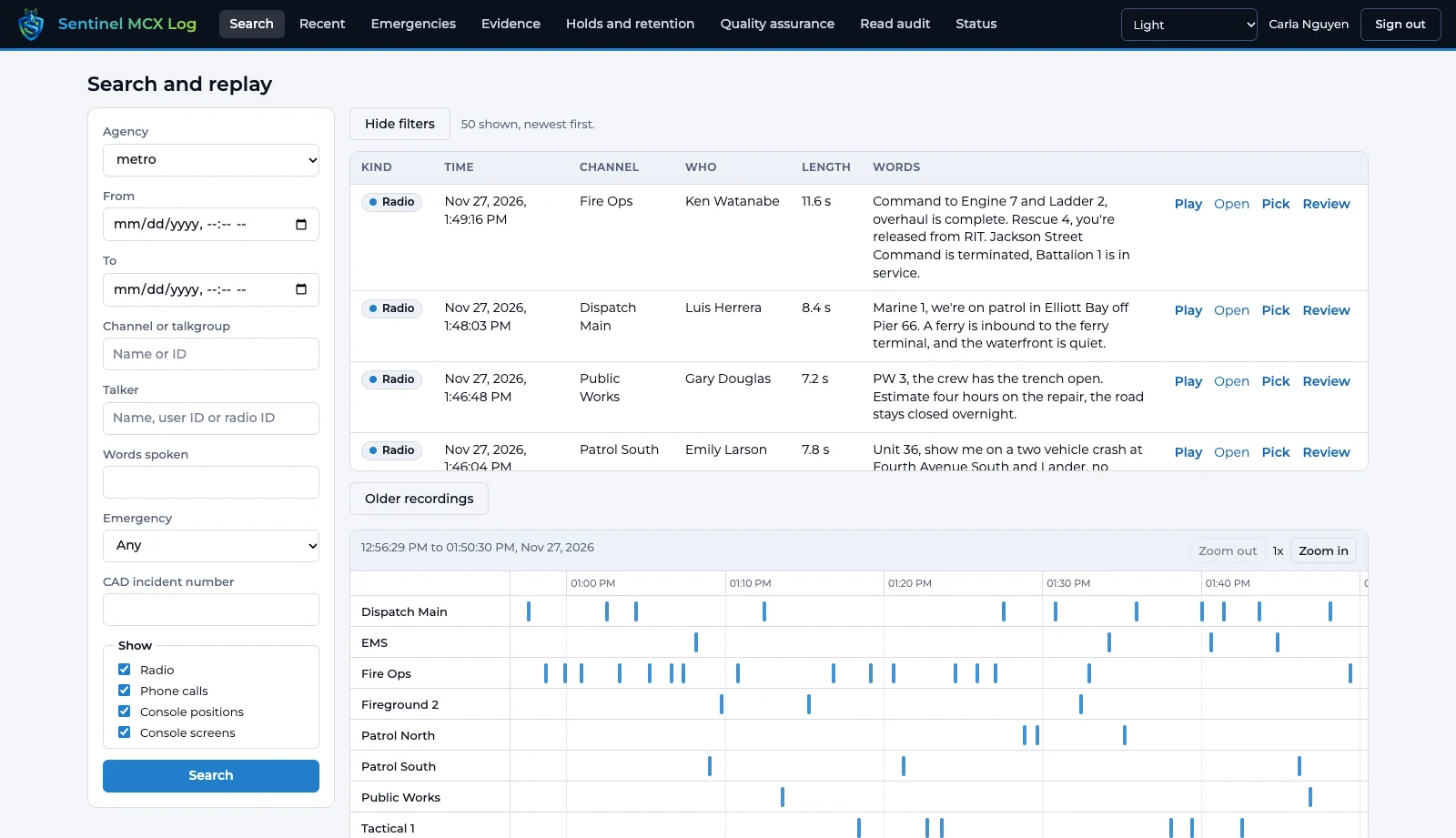
| Filter | What it finds |
|---|---|
| From, To | Recordings in that time, in your own time zone. |
| Channel or talkgroup | The channel ID, or any part of its name. Talkgroups from P25 and DMR radio systems are channels here. |
| Talker | A user ID, a radio ID, or any part of the talker's name. |
| Words spoken | Recordings whose transcript or a translation contains this phrase, in any letter case. The words must be in the same order: engine 5 finds "Engine 5 responding" but not "5 engine". |
| Emergency | Everything on the channel of one of the agency's last 50 emergencies, from its raise to its clear. |
| CAD incident number | The recordings of the incident your CAD gave that number. |
| Show | Radio, and where your agency records them, Phone calls, Console positions and Console screens. |
Each result has Play, Open (its own view), Pick (for an evidence package) and, for QA evaluators, Review. A recording that cannot be played says why: Not held, Purged under retention, or Differs from the hash taken at capture, which never plays.
The timeline and the player
Below the results, the timeline shows a row per channel and a block per recording. Click a block to select and play it; Zoom in and Zoom out change the scale, and the view follows the player.
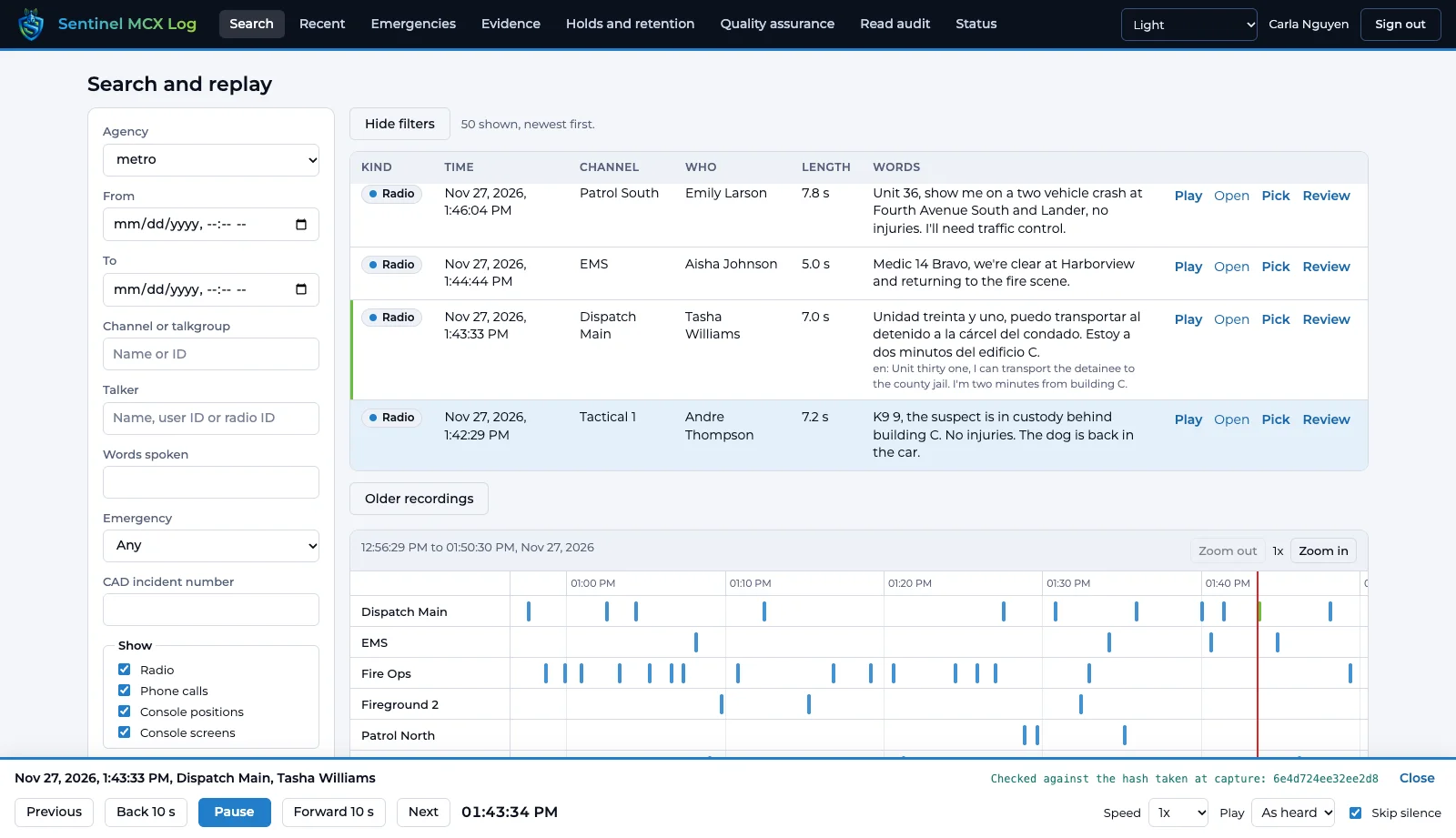
- Previous, Back 10 s, Play or Pause, Forward 10 s and Next move through what the screen found. Speed runs from 0.5x to 2x.
- Play: In order plays one recording after another. As heard plays every channel against one clock, so overlapping traffic is heard together as it was on the air. Skip silence jumps over gaps longer than a second.
- The bar shows that the audio was checked against the hash taken when it was recorded.
4A recording and its transcript
Open on any result shows the recording on its own: the transcript with your searched words highlighted, each translation, and the details.
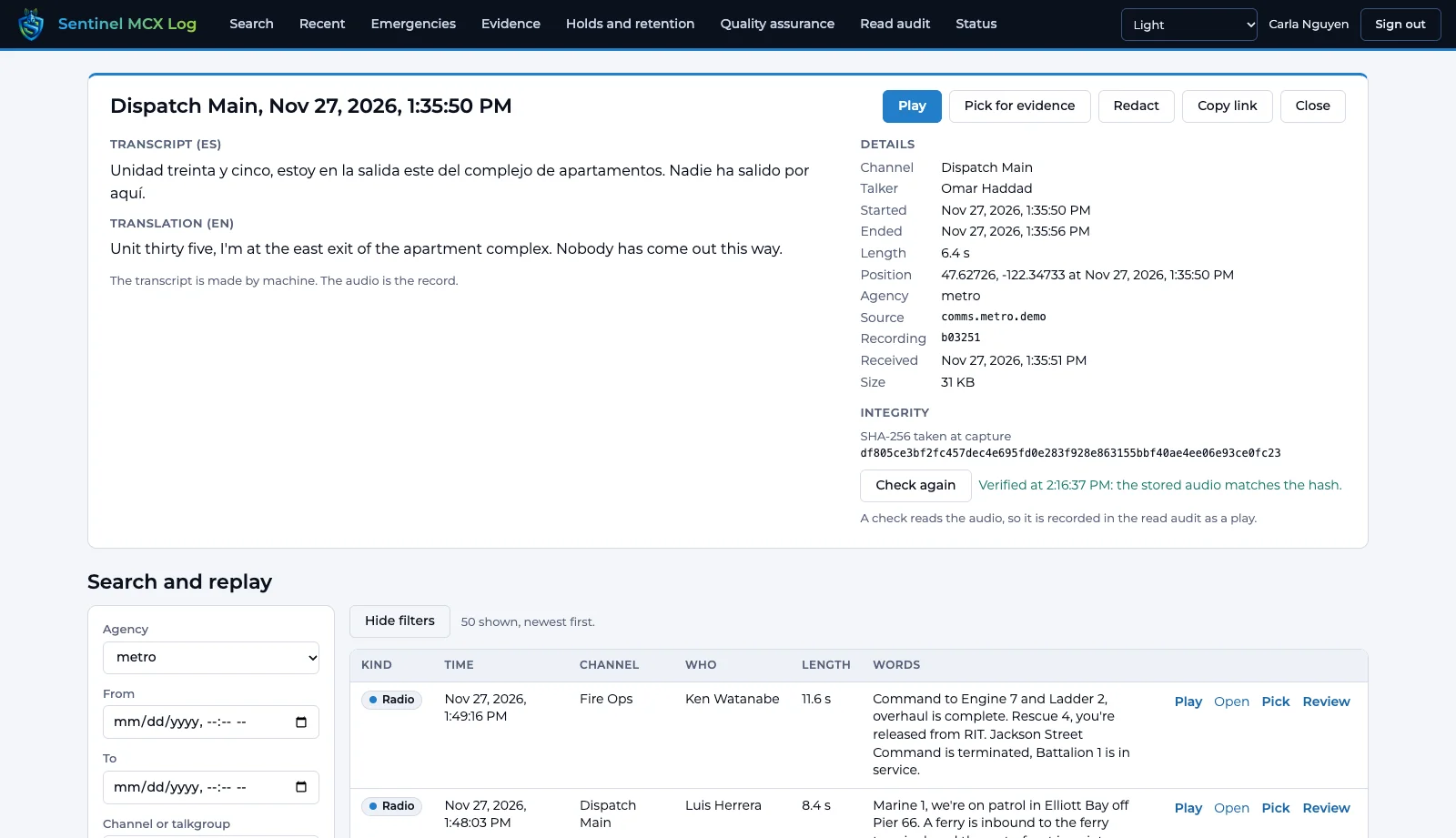
- The transcript is made by machine. The audio is the record. Play the audio before you rely on the words.
- Details give the channel, talker, start and end, length, the talker's position as text, the agency and when the recorder received it.
- Integrity shows the SHA-256 taken at capture. Check reads the stored audio and confirms it still matches. A check counts as a play in the read audit.
- Copy link copies a link to this recording. Whoever opens it sees it only if their own roles allow.
- Pick for evidence adds it to the evidence list, and Redact makes a redacted copy (records managers and administrators).
5Recent traffic and emergencies
Recent
For a supervisor or a records desk without a console. Choose the Agency and The last 5, 15, 30 or 60 minutes. The screen reads again every 20 seconds while it is in front, with a card per channel and Replay the last. Pause stops the reading. Each reading is recorded as a search. It is not live listening: that is the dispatch console's job.
Emergencies
Choose the Agency and Show for the last 100 emergencies: when raised, by whom, how (for example SOS key or Man down), the state and how long it stood. Open one to see when it was raised, acknowledged and cleared, its channel, and everything recorded in it on a timeline with those moments flagged.
- Play as heard plays the whole emergency against one clock.
- Pick all for evidence adds every radio recording in it to the evidence list.
- Place a hold (records managers and administrators) keeps the emergency's channel from the raise to the clear under a legal hold. Give a reason, then Place the hold.
6Evidence packages
An evidence package is a zip that anyone can check without the recorder and without a network. Exporters, records managers and administrators make them.
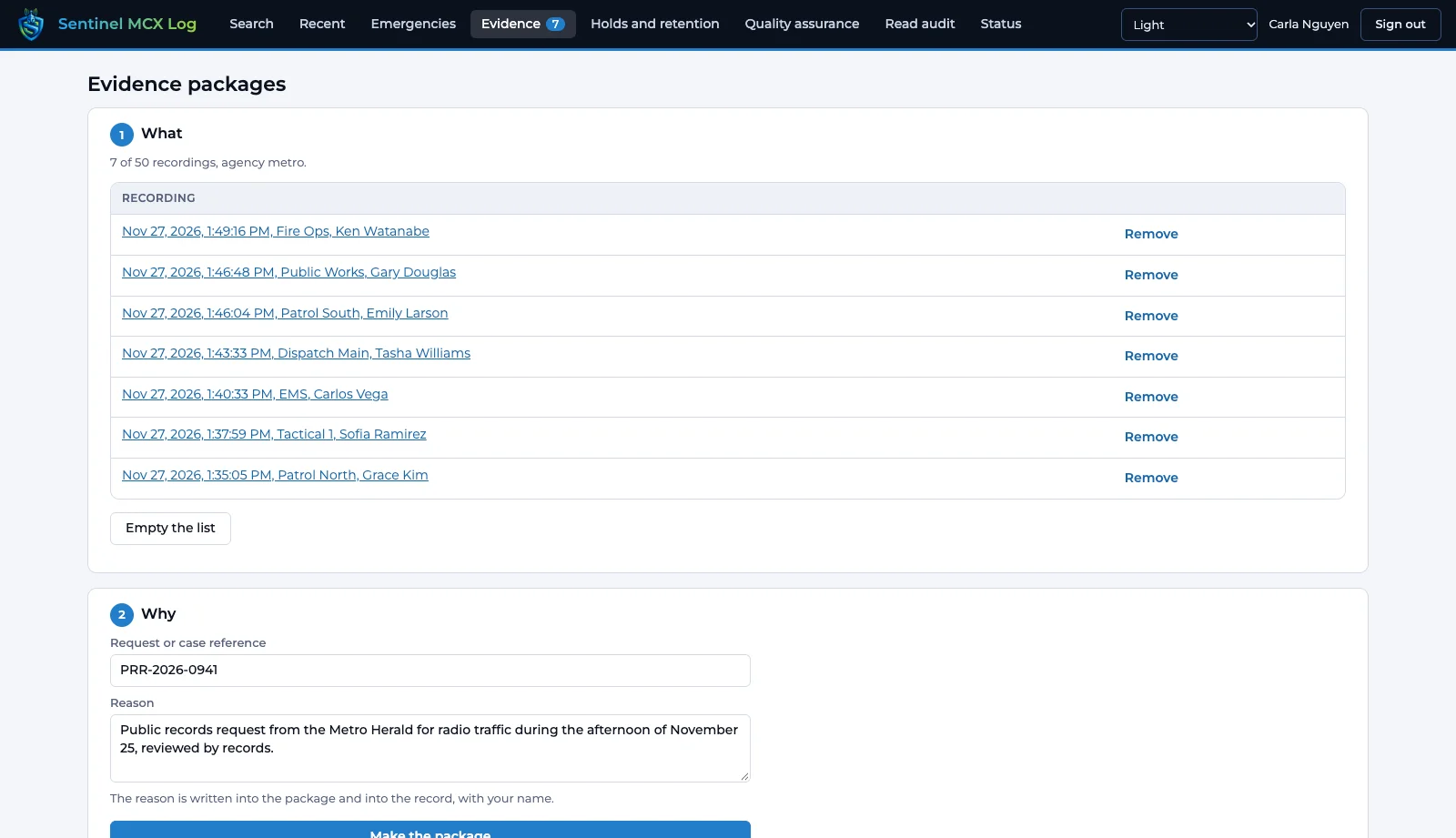
- What. In Search, choose Pick on each recording the request covers, or Pick all for evidence on an emergency. A package holds up to 50 radio recordings of one agency. The Evidence item in the top bar shows the count.
- Why. Open Evidence, give the Request or case reference if there is one and the Reason. The reason is written into the package and into the record, with your name.
- Make the package. Your browser saves
mcx-log-evidence-and the package ID, as a zip. Save again saves another copy while the page is open.
| In the package | What it is |
|---|---|
| README.txt | What the package is and how to check it. |
| manifest.json and manifest.sig | What it holds, who made it and why, each recording's details, transcript and proof, signed by the recorder. |
| recordings: .ogg and .wav | The audio as recorded, which the proof is about, and a WAV copy that any player opens. |
| custody | Everyone who looked up, played or exported each recording, and when. |
Whoever receives the package checks it with the ledger's public key your agency holds:
recorder-verify --public-key <the key> <the package>
It says for each recording whether it is proved. Each day the recorder seals what it received that day under a signed root, so a recording received today is proved by a package made tomorrow.
7Redacted copies
Records managers and administrators make a redacted copy from a recording's view with Redact. The original stays as it was recorded.
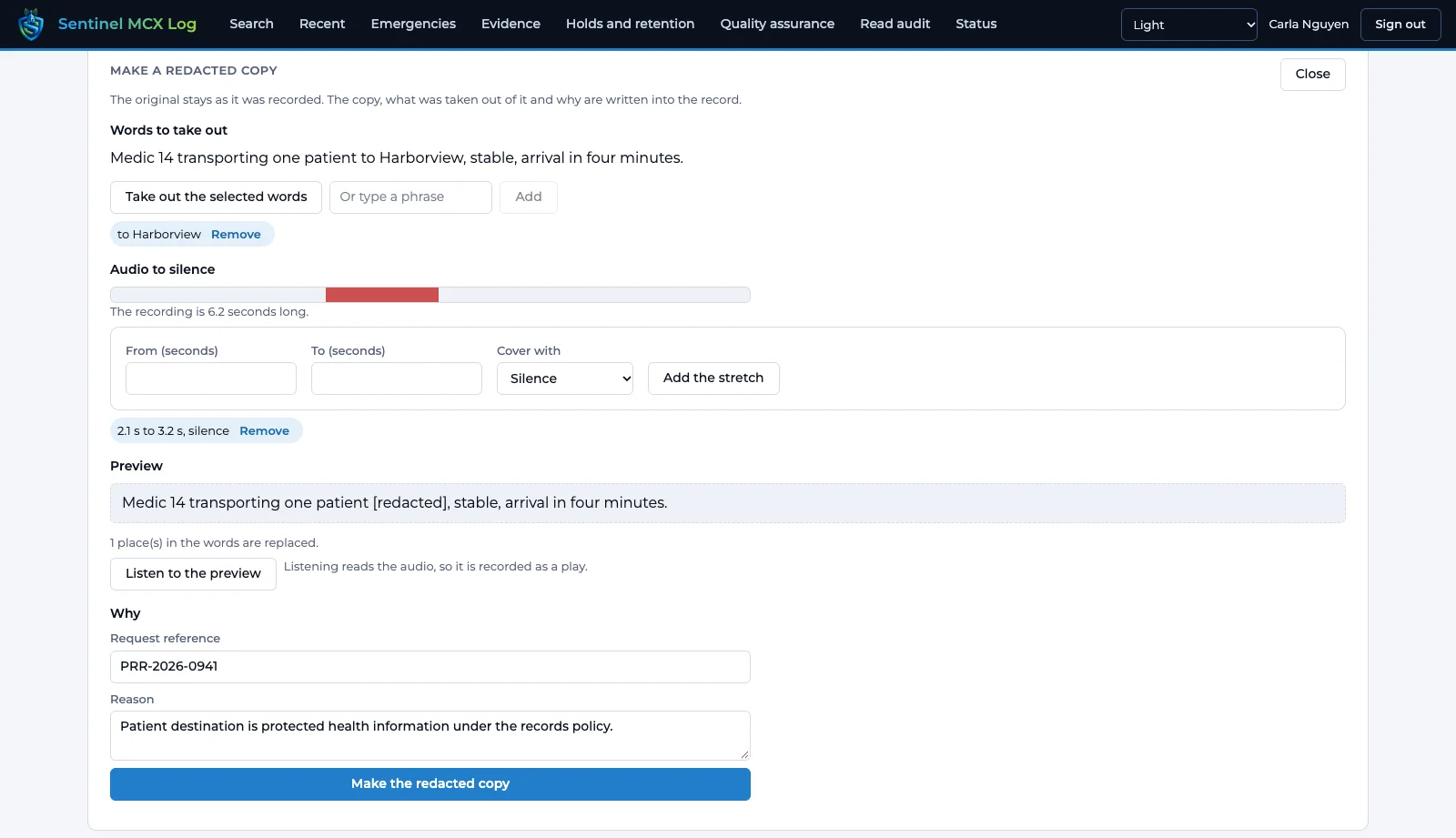
- Words to take out. Select words in the transcript and choose Take out the selected words, or type a phrase and choose Add.
- Audio to silence. Give From and To in seconds, choose Silence or A tone, and Add the stretch. While the preview plays, Start a stretch here and End it here fill the times in for you.
- Preview. The transcript shows each phrase as [redacted], and Listen to the preview plays the audio with the stretches muted.
- Why. Give the reason and choose Make the redacted copy. Your browser saves
mcx-log-redacted-and its ID, as a zip.
The copy holds the redacted WAV, the transcript with the phrases replaced, and a signed file saying what was taken out, why, by whom, and the hash of the original. Phrases are also taken out of the translations. Making the copy is written into the record.
8Legal holds and retention
Open Holds and retention, choose the Agency and Show. Records managers and administrators change holds and rules; auditors read them.
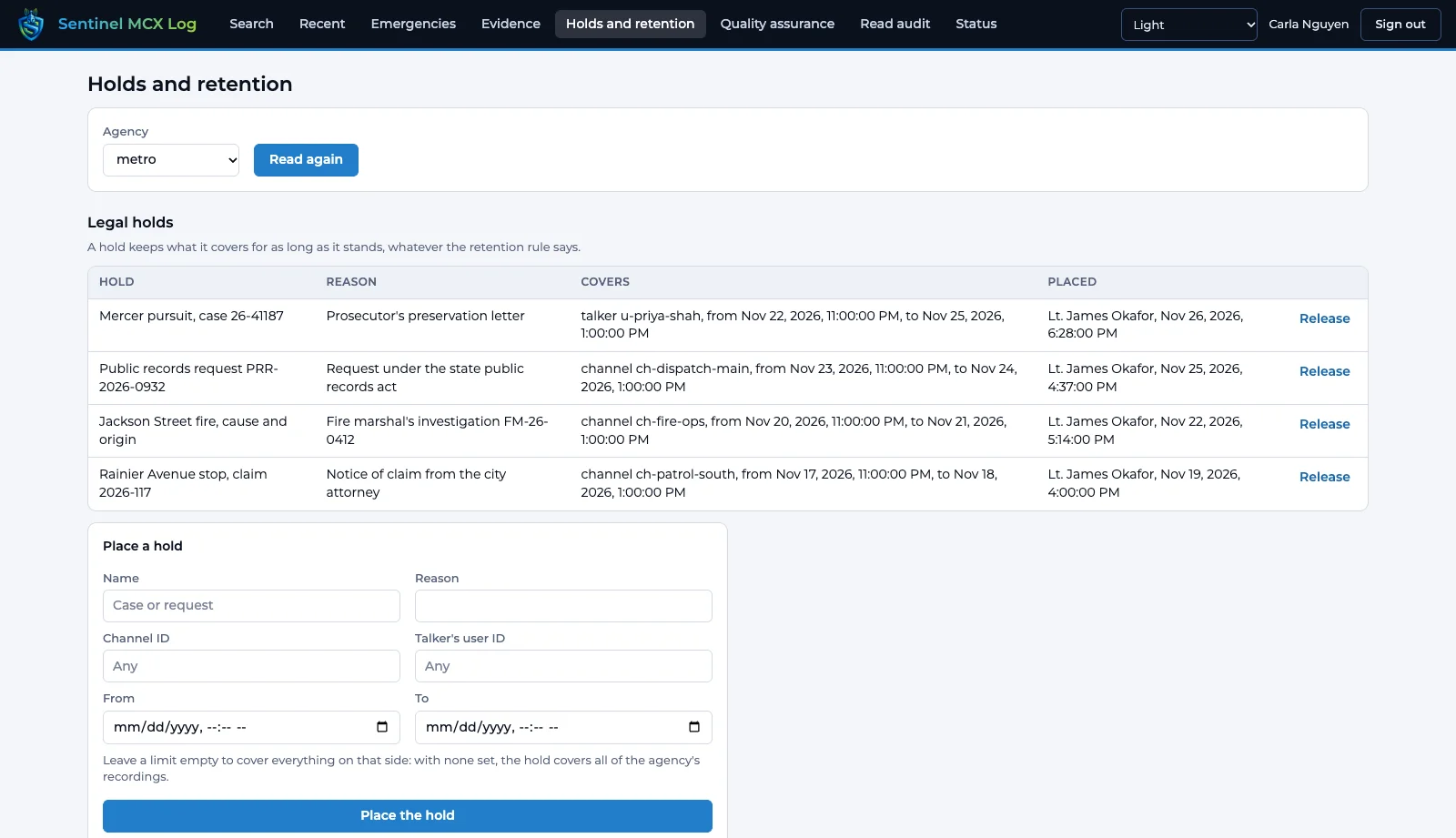
Legal holds
A hold keeps what it covers for as long as it stands, whatever the retention rule says. To place one, give a Name (the case or request), a Reason, and limit it if you need to by Channel ID, Talker's user ID, From and To. With no limit set, it covers all of the agency's recordings. Release asks why; once released, what it covered falls under the retention rule again.
A hold does not stop anyone searching, playing, exporting or redacting. Holds placed on the Sentinel MCX server are copied here.
Retention
A rule removes the audio and words of recordings older than its days, per channel class or for every class. The record that each recording existed, and the hash of its audio, stay in the signed ledger. An agency with no rule keeps its recordings for ever.
What was changed lists the agency's latest 50 changes: rules set and cleared, holds placed and released, audio removed, packages and redacted copies made.
9Quality review
Quality assurance is for QA evaluators and QA managers. It is confidential, and everything opened or written there is in the read audit.
Cases
Cases come from Review on a search result, or from a random sample the QA manager opens under Setup. Choose Open, Evaluated, Skipped or All and Show; the most pressing come first, with overdue dates marked. The line above the list shows this year's reviews against the minimum the APCO/NENA standard asks for.
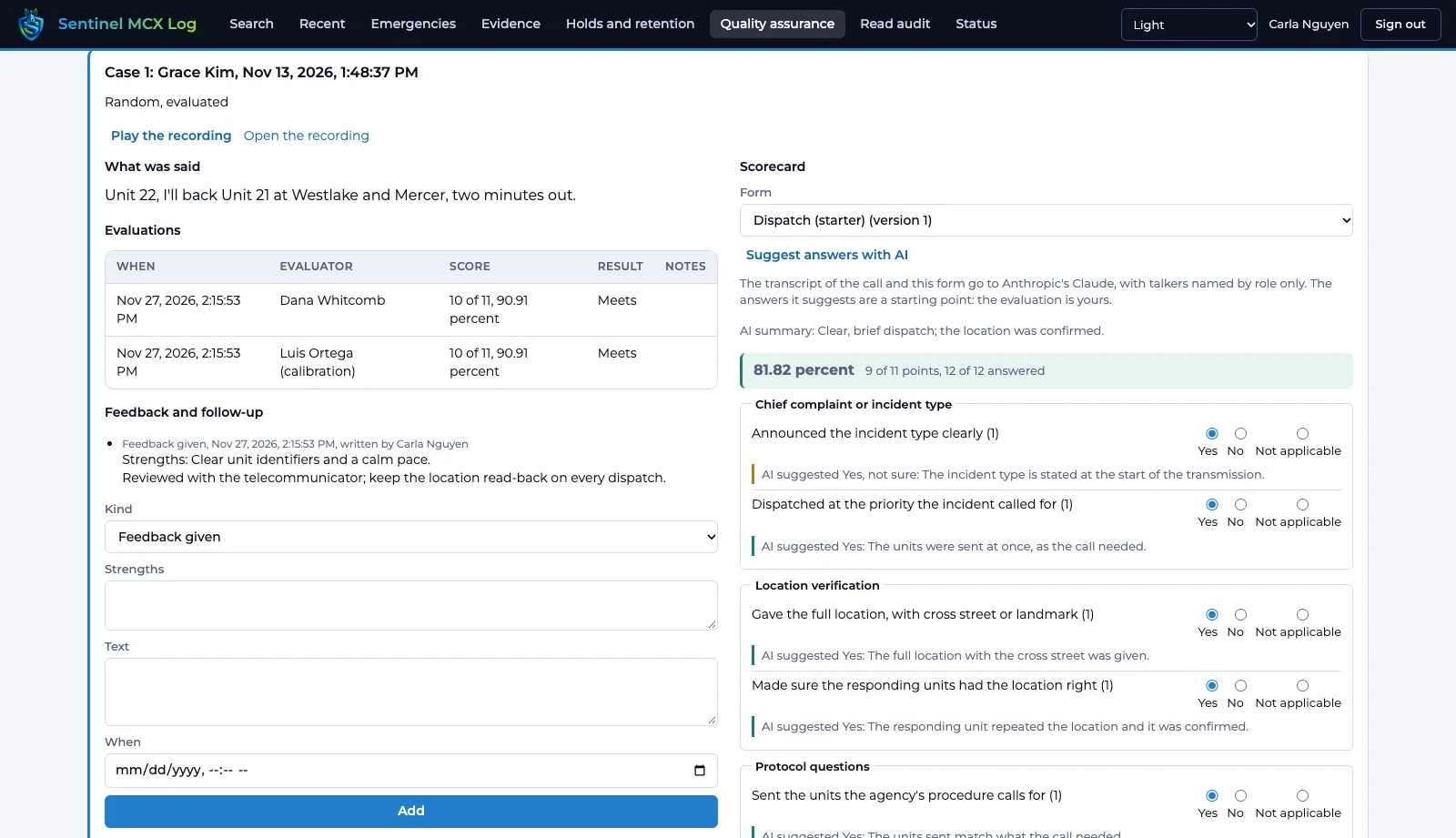
- Open a case. Play the recording, and read What was said.
- Score it. In the Scorecard, answer every question Yes, No or Not applicable. The running score shows the percent and any category below its minimum. Tick Exceeds expectations or See the supervisor if they apply.
- Submit the evaluation. Scoring a case someone already evaluated is a calibration: until you have scored it, you do not see the other evaluations, notes or suggestions.
- Feedback and follow-up. Add a note of the feedback given, the telecommunicator's response, a wellness follow-up or a recommendation, with when it happened.
AI-suggested answers
Where your agency's QA manager has turned it on, Suggest answers with AI reads the call's transcript and pre-fills the scorecard, with a short reason under each question. The transcript and the form go to Claude, Anthropic's model, with talkers named by role only: no names, user IDs or positions. The suggestion is a starting point. Check each answer against the recording and change any you disagree with; the evaluation you submit is yours.
Action plans, reports and setup
- Action plans list open items, overdue first. The QA manager adds them from a case; whoever is responsible marks them Completed.
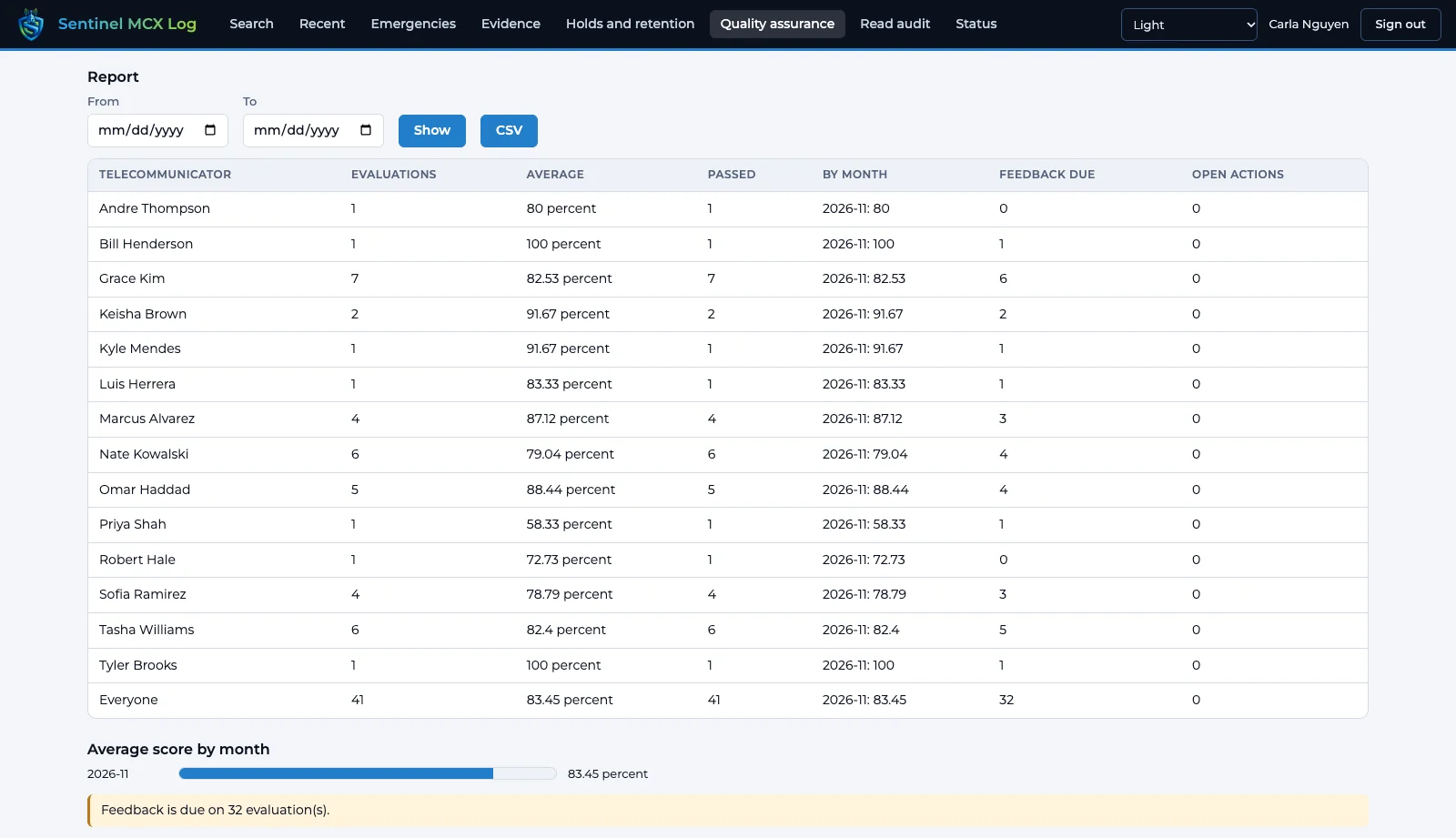
- Reports (QA manager): the year against the standard's minimum, scores by telecommunicator and month, feedback due, and how often evaluators kept the AI's answers. CSV downloads the report.
- Setup (QA manager): open random cases for a period, copy a starter form for call taking or dispatch, and set the calls for service a year, how long closed cases are kept, and AI-suggested scoring.
10The read audit
Auditors open Read audit, choose the Agency and Show. Every search, view, play, export, redaction, refusal and change is listed with when, who and what. A read that cannot be recorded is not served, and the audit cannot be turned off.
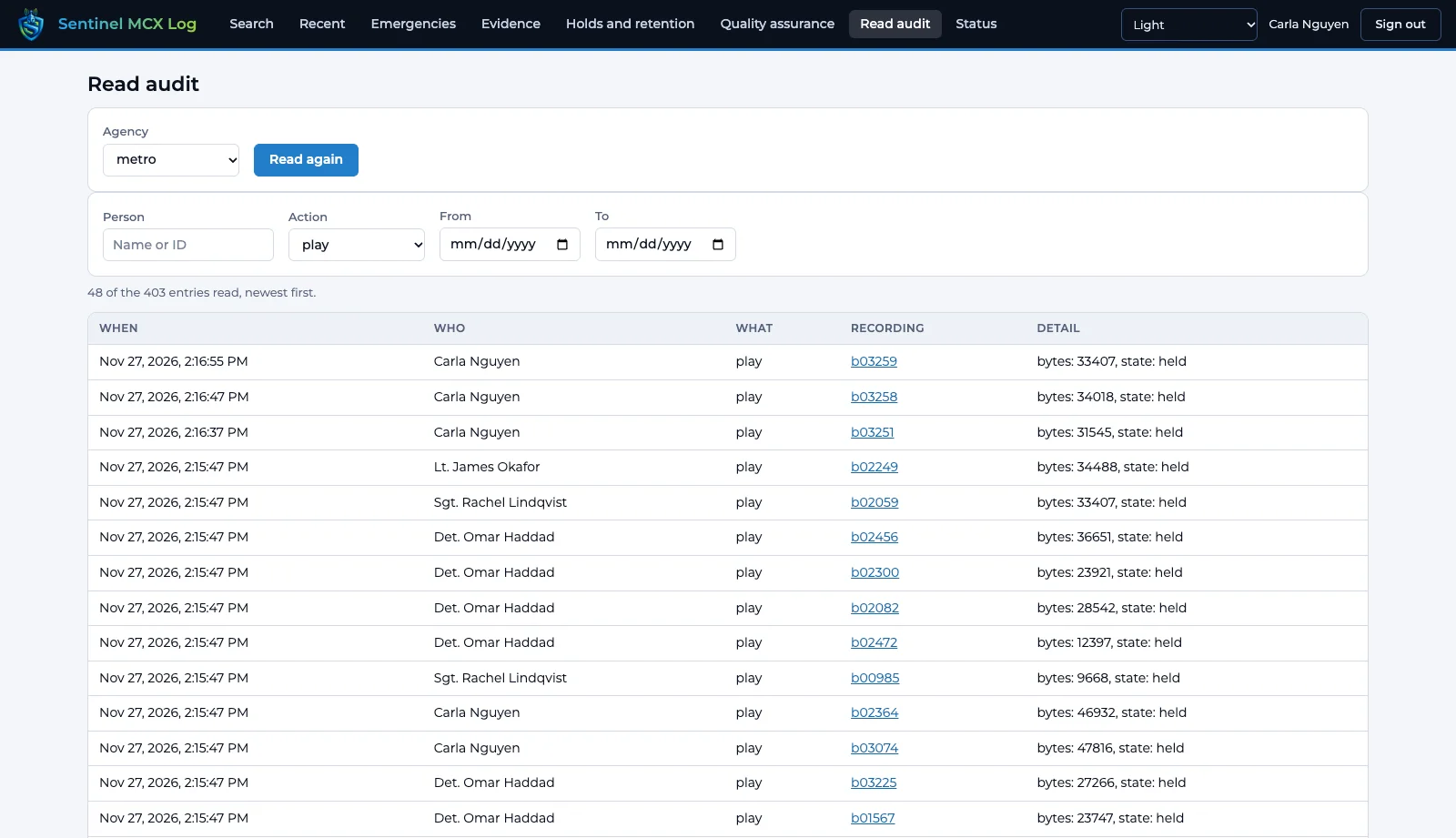
- Narrow the list by Person, Action, From and To. The recording column links to the recording.
- 500 entries are read at a time; Read 500 older entries reads more.
- Reading the audit is itself recorded.
11Troubleshooting
| You see | What to do |
|---|---|
| Your identity provider did not confirm a second factor | Sign in again with your authenticator code or security key. If you have none, ask your administrator to require one for MCX Log. |
| No reader with your email address | Your administrator has not added you to the recorder yet. |
| You have no role that lets you search or play | Ask your administrator for a role in your agency. |
| A screen is missing from the top bar | It depends on your roles. Ask your administrator. |
| Nothing matches a Words spoken search | Try fewer words, in the order they were said, or search by channel and time and read the transcripts. |
| Not held, or Purged under retention | The audio never reached the recorder, or was removed under the agency's rule. The record that it existed remains. |
| Differs from the hash taken at capture | The stored audio does not match what was recorded and will not play or export. Tell your administrator. |
| The evidence list is empty after a reload | The list lives in the open page. Pick the recordings again. |
For help, contact your dealer.