 Sentinel MCX
1About Sentinel MCX Guardian
Sentinel MCX Guardian keeps a school, college or workplace campus safe from one system. Any member of staff can call one of the five standard campus actions for their building from their phone. The alert reaches everyone at that site and the office at once, in the action's color and words. After an Evacuate or a Lockdown, each teacher accounts for their class from the phone, and the office sees who is missing.
| Part | Who uses it | What it does |
|---|---|---|
| Sentinel MCX Mobile | Staff, on Android phones, iPhones and rugged push-to-talk handsets | Campus alerts, roll call, campus channels, messages, the map and the emergency button. |
| Sentinel MCX Dispatch | The office, in a web browser | Every campus at a glance: raise and clear alerts, the class accounts, the map with floor plans, channels and messages. |
| The alert screen | Staff computers, where your school sets it up | Turns the window the action's color with its words when an alert is raised. |
| Building outputs | Everyone in the building, where installed | The building's strobes, speakers and displays follow each alert. |
The five campus alerts
| Action | Color | The words on screen | What it means |
|---|---|---|---|
| Hold | Purple | In your room or area. Clear the halls. | Stay where you are and keep the corridors clear, for example for a medical call. Work goes on. |
| Secure | Blue | Get inside. Lock outside doors. | A danger outside. Bring everyone in and lock the outside doors. |
| Lockdown | Red | Locks, lights, out of sight. | A danger inside or at the building. Lock the room, lights off, everyone out of sight and silent. |
| Evacuate | Green | To a location. | Leave the building and go to the place given with the alert. |
| Shelter | Orange | Hazard and safety strategy. | Shelter from a hazard, such as severe weather, by the strategy given with the alert. |
Your agency's words
Your organization chooses, as its Guardian setting, whether the apps use a school's words or a corporate campus's words. Alerts, roll call and emergencies work the same either way; only the words change. This guide uses the school words.
| School (the default) | Corporate campus |
|---|---|
| class, classes | department, floor or shift (your organization picks one) |
| student, students | person, people |
| teacher | lead |
| Account for my class | Account for my department (or floor, or shift) |
2Signing in
On a phone
- Install the app. On Android, as your school tells you (managed phones and rugged radios often come with it). On an iPhone, install Sentinel MCX Mobile from the App Store. The icon reads MCX Mobile.
- Open it. The first screen is Sign in this device.
- Enter the server address and the enrollment code from your administrator, or paste the enrollment link, then tap Sign in this device. The code works once.
- Allow notifications, so alerts reach you when the app is in the background, and the microphone, location and Bluetooth when asked.
In the office
Open the address your school gives you in Chrome or Edge, enter the enrollment code and choose Enroll this console. Click Start audio in the top bar, so the browser lets the console play sound.
3The Campus alerts screen and the Campus panel
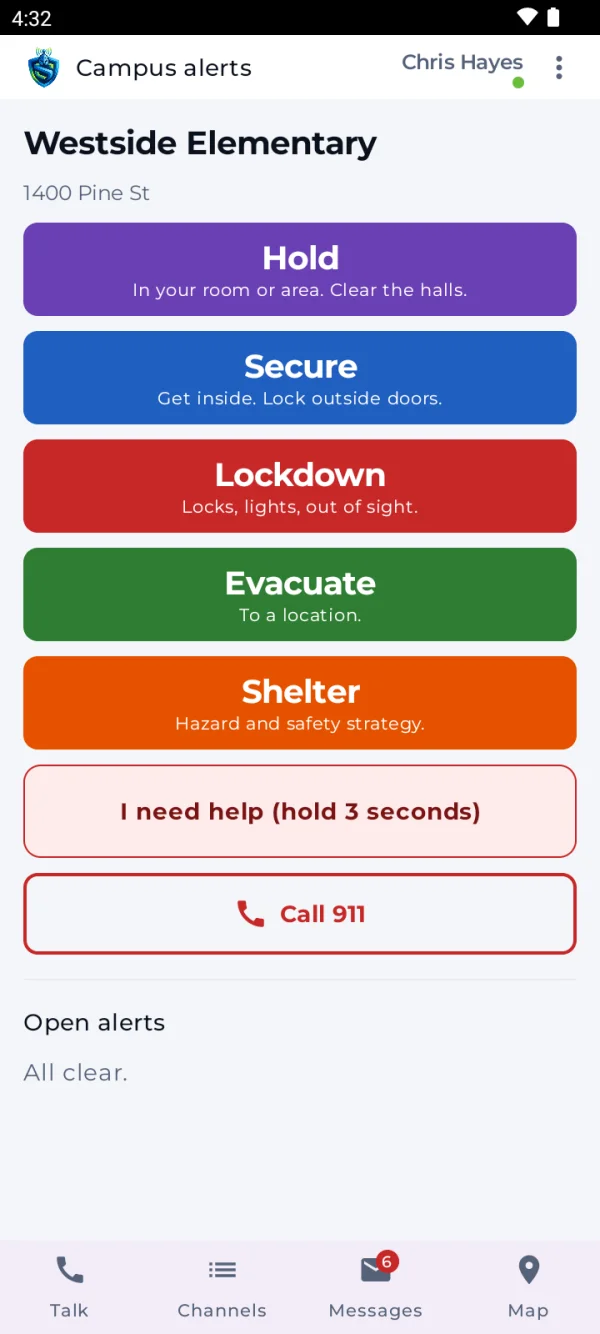
The Campus alerts screen on a phone
Open Campus alerts from the menu. It shows a count while alerts are open, and appears only when your school has campus alerts on and you are on a site.
- The site you raise alerts for. If you work at more than one, pick one first.
- The five actions, each in its color with its words.
- I need help (hold 3 seconds): your own emergency (section 9).
- Call and your emergency number, as your school set it: it opens the phone's dialer with the number. You place the call; Guardian never does.
- Open alerts, or All clear, and the alerts cleared in the last day.
The Campus panel in Sentinel MCX Dispatch
In the office, click Campus in the left rail. The badge counts open alerts.
| Part | What it shows |
|---|---|
| Colored bars at the top | Each open alert in its color, with the site, the words, the note and who raised it, and Open and Clear. They stay above every panel until the alert is cleared. |
| Sites | Every site: All clear, or its open alert. |
| Raise | Raise an alert for any site you watch. |
| Accountability | The class accounts after each Evacuate or Lockdown (section 8). |
| History | The alerts of the last 24 hours, with who raised and cleared each. |
4When an alert arrives
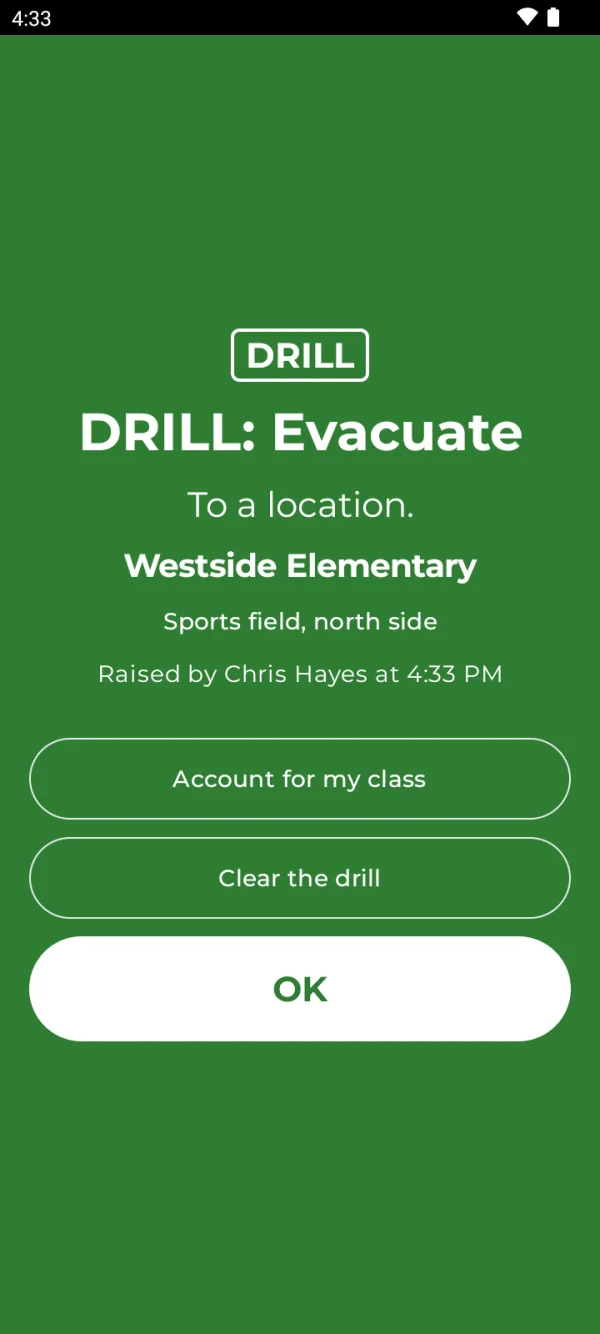
A new alert at your site takes the whole phone screen in the action's color: the action (with DRILL in front for a drill), its words, the site, any note, and who raised it and when.
- Act at once on the words and your school's procedure.
- Tap OK to turn the alert into a colored banner at the top of every screen. It stays until the alert is cleared; tap it to see the alert again.
- After an Evacuate or a Lockdown, tap Account for my class when it is safe (section 7).
- Keep listening to your campus channel for instructions.
Sounds
- Hold, Secure, Evacuate and Shelter each have their own tone and vibration.
- Lockdown is silent on phones unless your school changes it: the phone vibrates and shows the alert but plays no tone, so a hidden classroom is not given away. The office console always sounds.
- A drill sounds like the real action on phones; the console shows it without an alarm.
- An alert you raised yourself shows as confirmation, with no sound.
5Raising an alert
Any member of staff on a site may raise Hold, Secure, Evacuate and Shelter for it, and Lockdown too unless your school has kept Lockdown for supervisors and the office. Then the phone does not offer it to you.
From a phone
- Open Campus alerts and, if you work at several sites, pick the site.
- Tap the action.
- Confirm. Tick This is a drill for a practice. Add a short note if it helps, for example where the danger is. For Evacuate, say where to go; for Shelter, the hazard and the safety strategy are both needed.
- Send. The button names the action, or says drill. Cancel sends nothing.
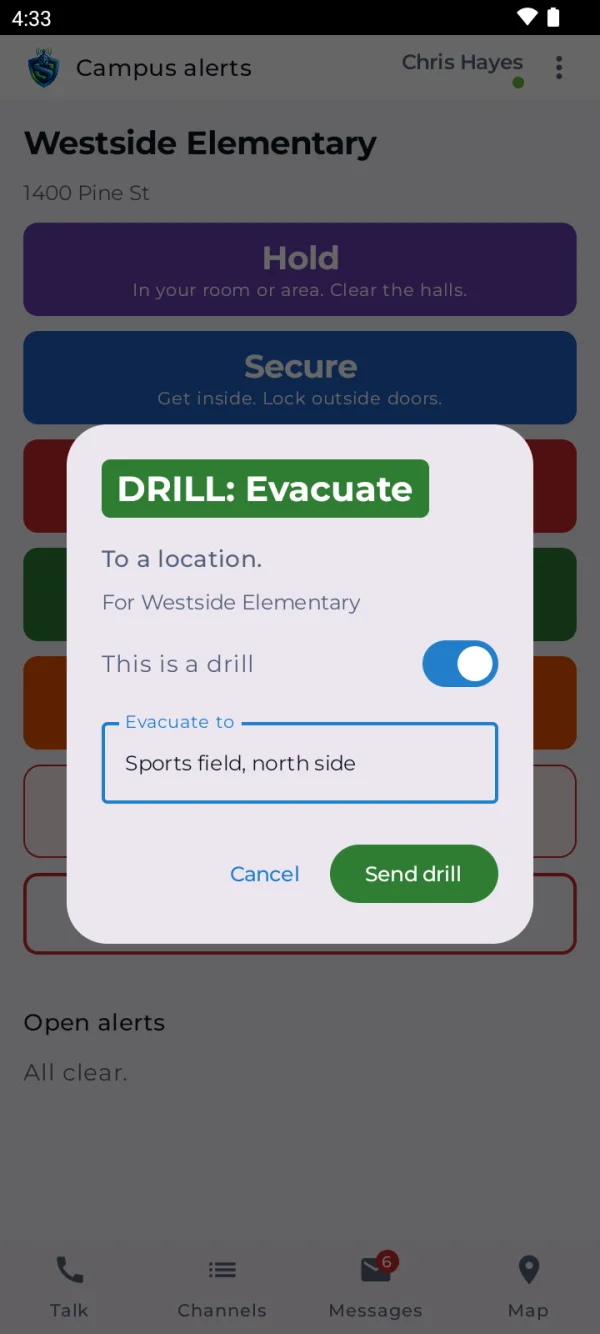
The alert reaches everyone at the site and the office within a second or two.
From the console
In the Campus panel under Raise, choose the site, click the action, fill in what it asks for, tick This is a drill for a practice, then Raise. Check the confirm box and click Confirm.
From a panic badge
Where your school issues badges, a set number of quick presses raises a campus alert at the wearer's site with the room the badge heard, and a shorter pattern raises the wearer's own emergency. Your school decides the patterns and the action.
6Clearing an alert
An alert stays on every screen until it is cleared.
| Who | May clear |
|---|---|
| Supervisors and the office | Any alert at their sites, real or drill. |
| Whoever raised a drill | That drill. |
| Other staff | Nothing, so nobody can be forced to send an all clear from a classroom phone. |
On a phone, tap Clear on the alert and confirm (or Keep it). On the console, click Clear. When it clears, the banner and notification go on every phone and the building outputs go back to normal.
7Accounting for your class
After an Evacuate or a Lockdown, real or drill, each teacher with a class list reports their class. You can report while the alert is open and for up to an hour after it is cleared. Hold, Secure and Shelter ask for no account.
- Tap Account for my class on the alert. Each of your classes that meets at the site shows, with Account.
- Tap Account beside the class. Everyone shows as Here.
- Tap a name once for Missing, twice for Injured, a third time for Here again.
- Add anyone with you who is not on your list under With you, not on this list.
- Add a note if it helps, for example where a missing student was last seen.
- Check the summary and send.
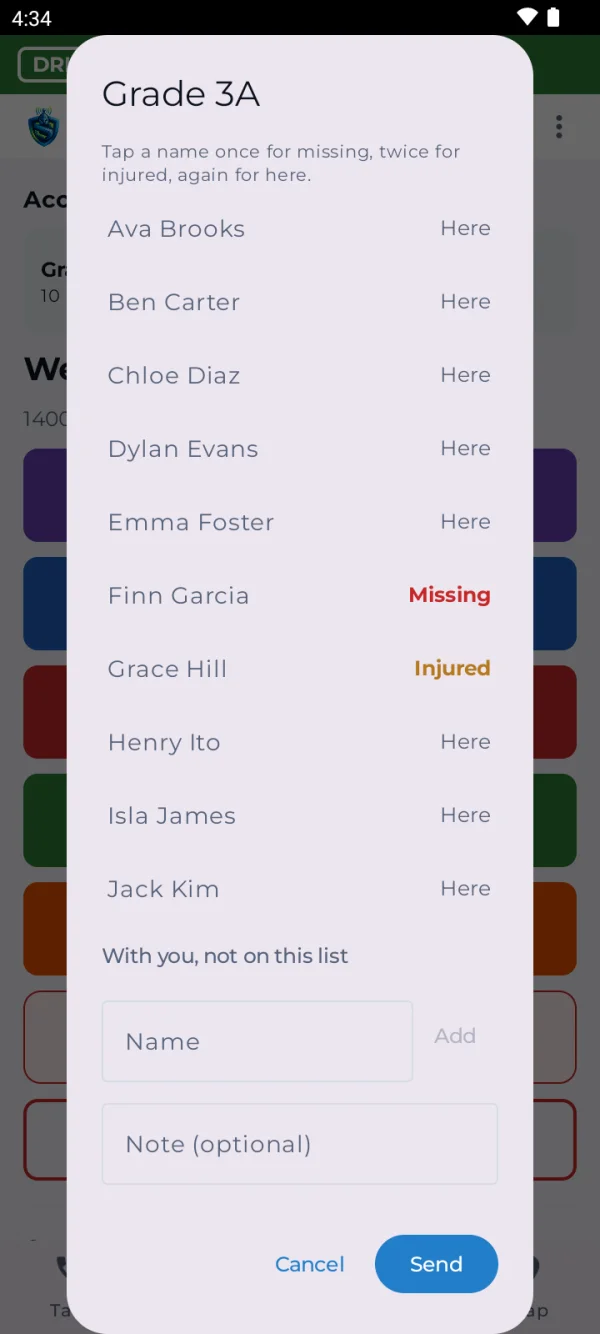
- The class then shows Reported at and the time, with Update. Send again when things change: the newest report replaces the earlier one.
- Class lists are imported by your school. If yours is missing or wrong, tell your administrator.
- Names on the phone are kept encrypted and only while you need them.
8The office: accountability on the console
The Accountability section of the Campus panel fills in as teachers report. Each Evacuate or Lockdown has a line with the action, the site and how many classes have reported, then the counts missing, injured and extra.
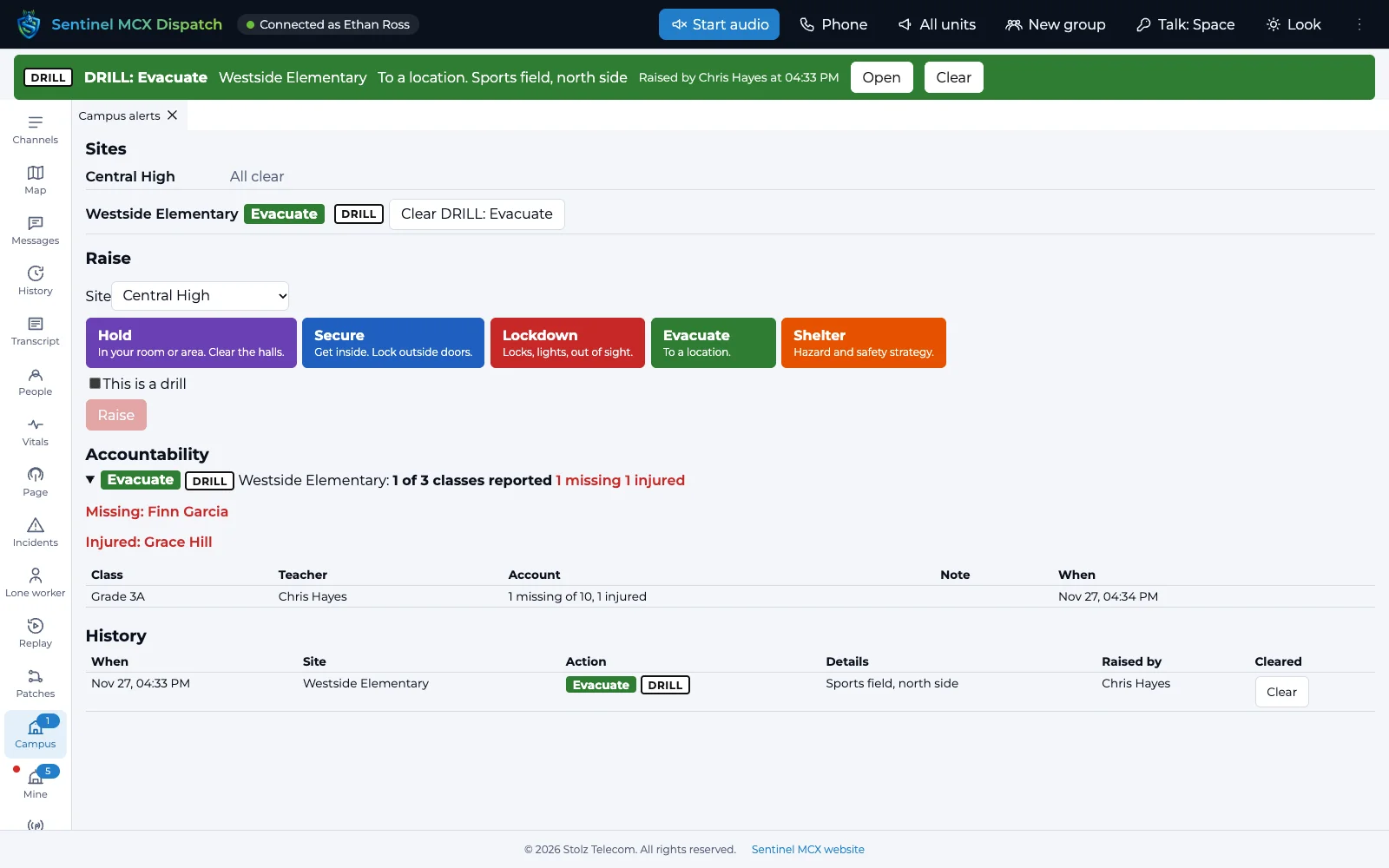
- Missing and Injured list the students' names.
- With a teacher, not on their list: students who are safe with another class. Compare them with the missing names.
- Open the line for each class's report, its teacher, note and time. Classes that have not reported are the ones to chase on the channel.
9Getting help for yourself
A campus alert is for the whole building. An emergency is for you or someone with you: it goes straight to the office with your position. Nothing your school sets can stop an emergency.
- Hold I need help (hold 3 seconds) on the Campus alerts screen, or the emergency button on the Talk screen, or the SOS key on a rugged handset or a watch.
- The phone shows when the emergency is sent and who acknowledged it.
- Use Call and your emergency number whenever the emergency services are needed.
10Strobes, announcements and the alert screen
Where your school has connected its building, each alert can also light the building's strobes in the action's color, play the action's words and tone over the speakers, and turn the alert screen on staff computers the action's color. Drills are marked as drills, and your school may leave these outputs off for drills. They go back to normal when the alert is cleared.
Setting up the alert screen on a computer
- Open the link your administrator gives you, enter the code if asked, and choose Set up this computer.
- Turn on sound and allow notifications when asked.
- Leave the window open. It shows your site as all clear while nothing is happening.
11Drills and history
- Agree the drill with the office and your school's procedure.
- Raise the action with This is a drill ticked, and check DRILL shows before you send.
- Act it out. Teachers account for their classes after a drill Evacuate or Lockdown, as on the real day.
- Clear it: the person who raised it, a supervisor or the office.
The console's History shows the last 24 hours. Your administrator keeps every alert, drills included, with who raised and cleared it, and can download the alerts and their class accounts as a spreadsheet for drill reports.
12Channels, messages and the map
- Channels: staff talk on campus channels like a radio. Hold the talk button, wait for the tone, speak, release.
- Messages: one thread for each channel and person, with photos, files and your location. During an alert the office may send instructions as a message too.
- The map: where your school shares positions, the office sees staff on the map. With floor plans and Bluetooth beacons in rooms, a phone can show its user on a floor and in a room. Turn on Bluetooth and allow the app to use it.
13Quick reference and troubleshooting
| Problem | What to do |
|---|---|
| No Campus alerts in the menu | You are not on a site, or campus alerts are off for your school. Ask your administrator. |
| Lockdown is not offered | Your school keeps Lockdown for supervisors and the office. Call it on the channel or ask them. |
| No class to account for | Your class lists are not imported for that site. Tell your administrator. |
| No sound on the console or alert screen | Click Start audio on the console, or Turn on sound on the alert screen. |
| Not placed in a room | Turn on Bluetooth and allow the app to use it. |
For anything else, ask your school's administrator, who contacts your dealer.